
Since launching Smart Assist in Quick Audit, we've been expanding what's possible for SkySlope Admins and Auditors, introducing powerful new tools to streamline your workflow and keep audits moving faster. Let's check out the new features.
Note: The new features outlined below are currently available for brokerages in California.
TABLE OF CONTENTS
- Smart Assist Panel
- Smart Assist Panel on the Checklist
- Checklist Comments
- Customize the Smart Assist Panel
- Actions Menu
Smart Assist Panel
The file details panel on the right side of Quick Audit has been updated to ensure the most relevant and accurate details are at your fingertips while auditing. The Smart Assist Panel is split into four tabs: Summary, Dates, Contacts, and Commission. You can also customize this panel to fit your needs!
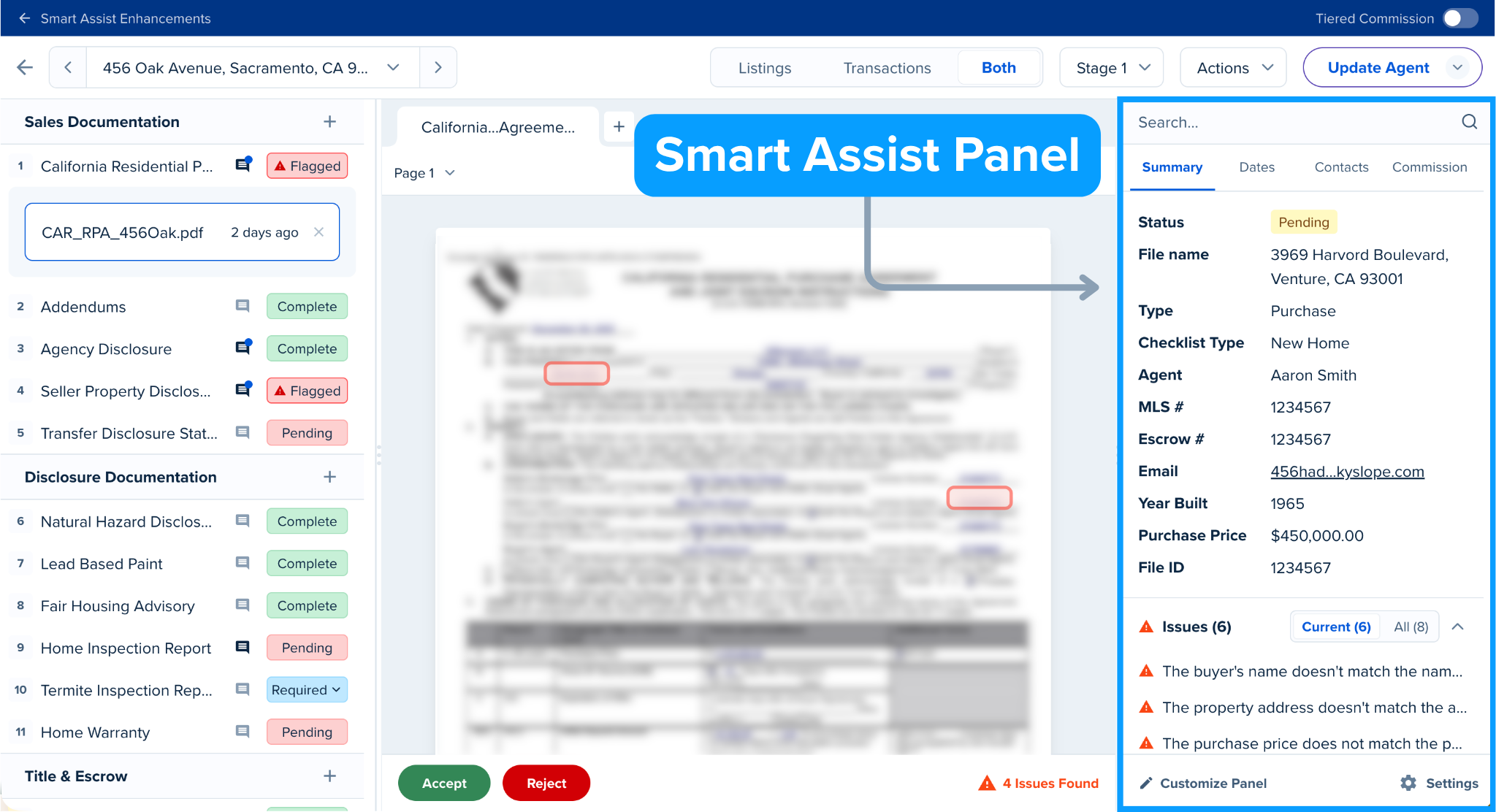
Smart Assist Panel — Summary
On the Summary tab of the Smart Assist Panel, you will find the key details for the Listing or Transaction you're currently viewing. This data is autofilled from various sources, such as the SkySlope file details and the details found in the uploaded documents, to ensure information stays up-to-date and accurate. For example, if the acceptance date within the file and on the contract are different, we will display the acceptance date listed on the most recently signed document.
Note: If the details in the file don't match what is listed on the documents, we will prioritize the data from the documents over the data from the file details.
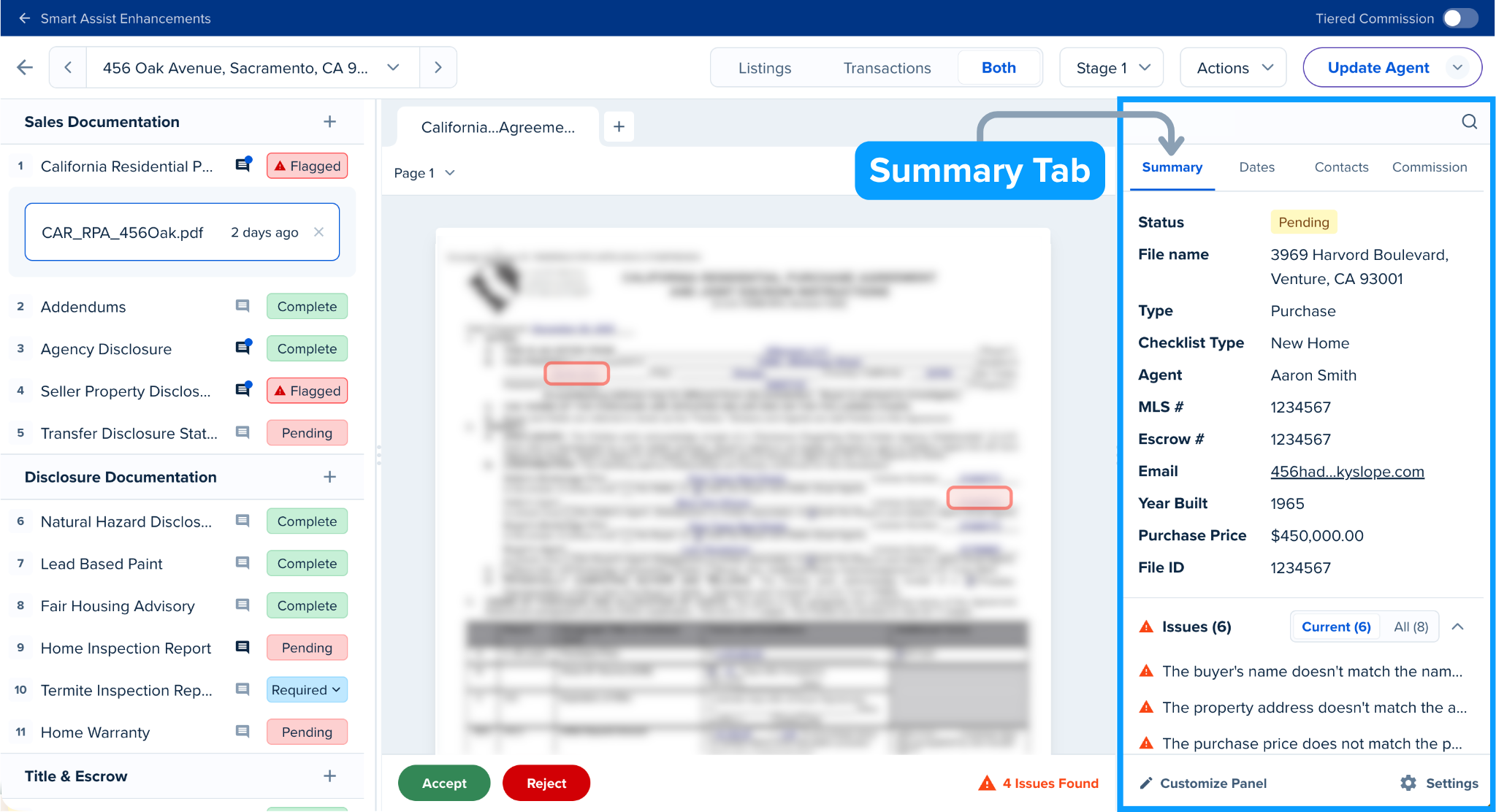
Issues and Successful Checks
In all four tabs of the Smart Assist Panel, you will see Issues and Successful Checks. This is a summary of the document scan completed by Smart Assist in Quick Audit, powered by AI. You will see a list of Successful Checks (required signatures, dates, and initials that appear to be complete and accurate) and Issues (required signatures, dates, etc. that appear to be incomplete or inaccurate).
When you click on an Issue or Successful Check item, you will jump directly to that item on the document for easy viewing.
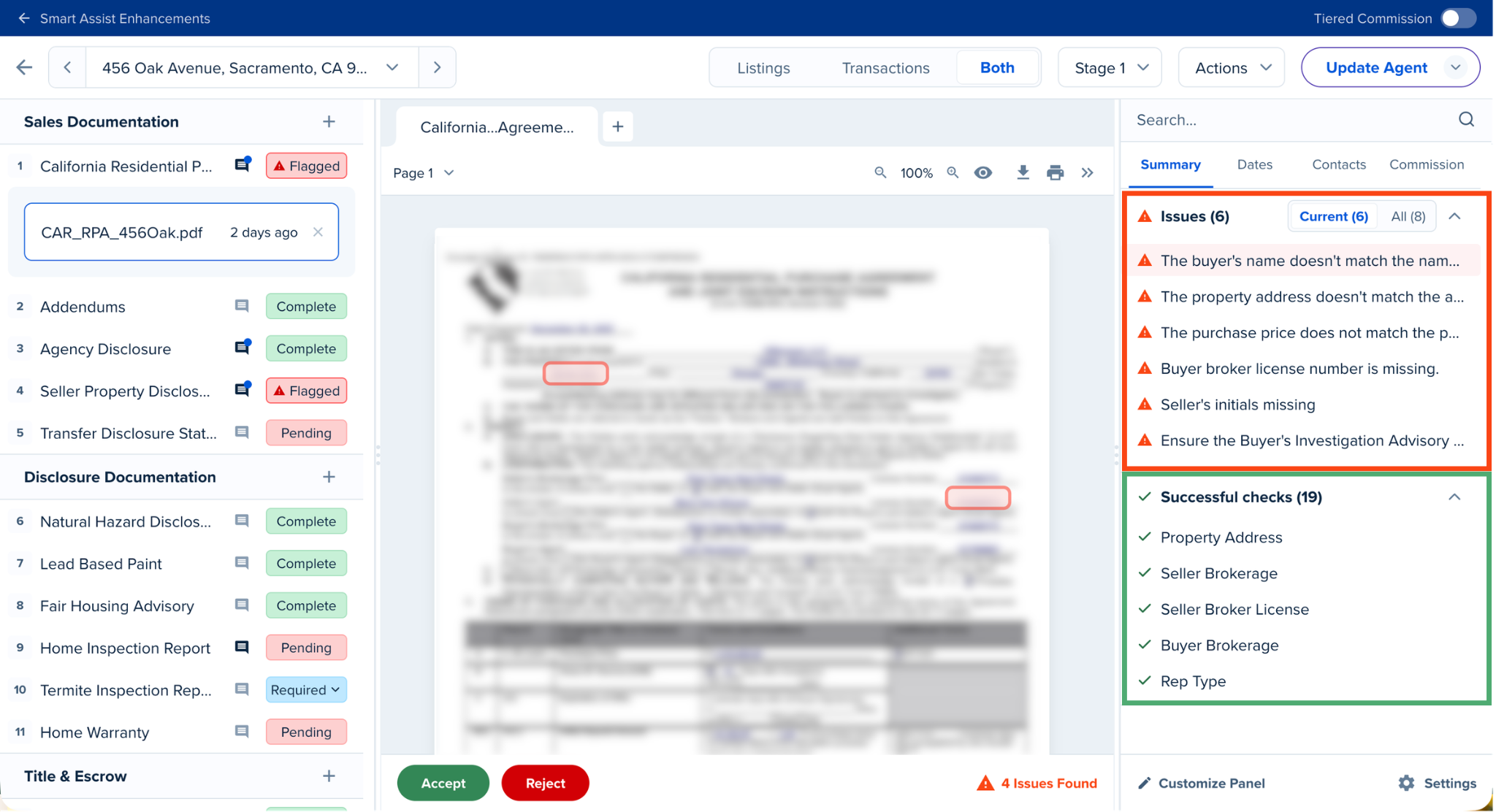
 | If after reviewing flagged issues you've confirmed that one isn't an issue, click the X icon. This will remove the flag and update the prepopulated Checklist comment outlining the issues so the flag is no longer included. |
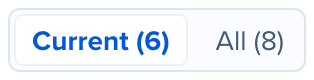 | Use the Current | All toggle to change your view preferences. Current shows the findings for the document you're currently viewing; All shows the findings for all of the documents in the file. |
Smart Assist Panel — Dates
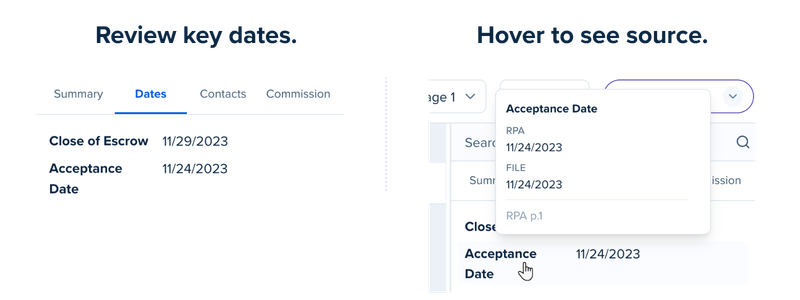
Navigate to the Dates section of the Smart Assist Panel to quickly view all of the essential dates for this deal. You can hover your cursor over a data point (for example, the close of escrow date) to see the various sources of data that are being used to autofill that data.
Smart Assist Panel — Contacts
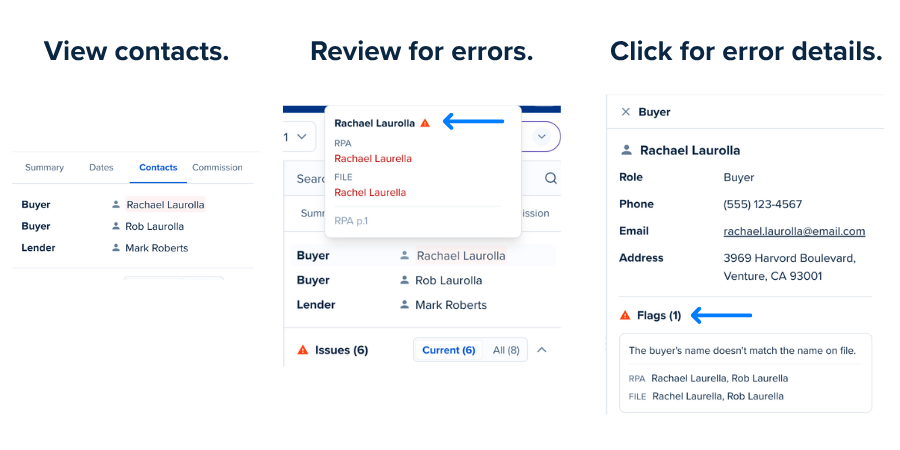
Similar to the Dates tab, the Contact tab lists all relevant contacts for this deal. Smart Assist compares names from the Listing/Transaction file to the names on the contracts and issues an alert if any details don't match.
Smart Assist Panel — Commission
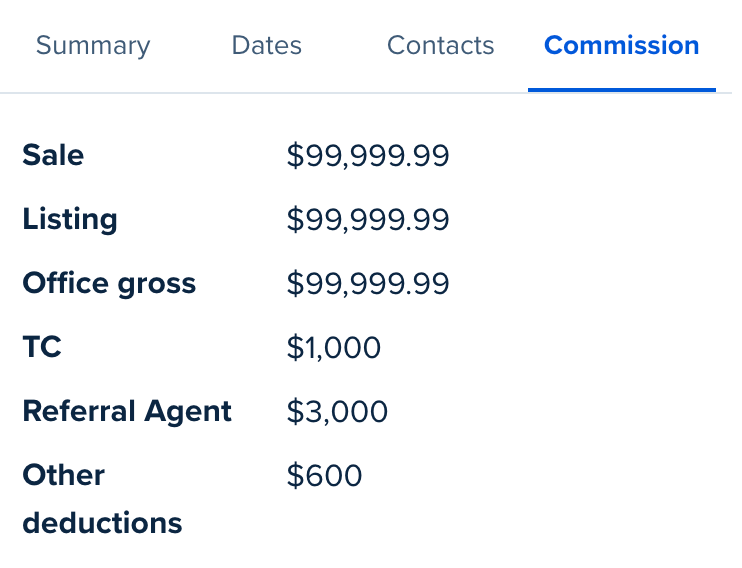
Utilize the Commission section to review relevant commission details for this deal. |
|
Search
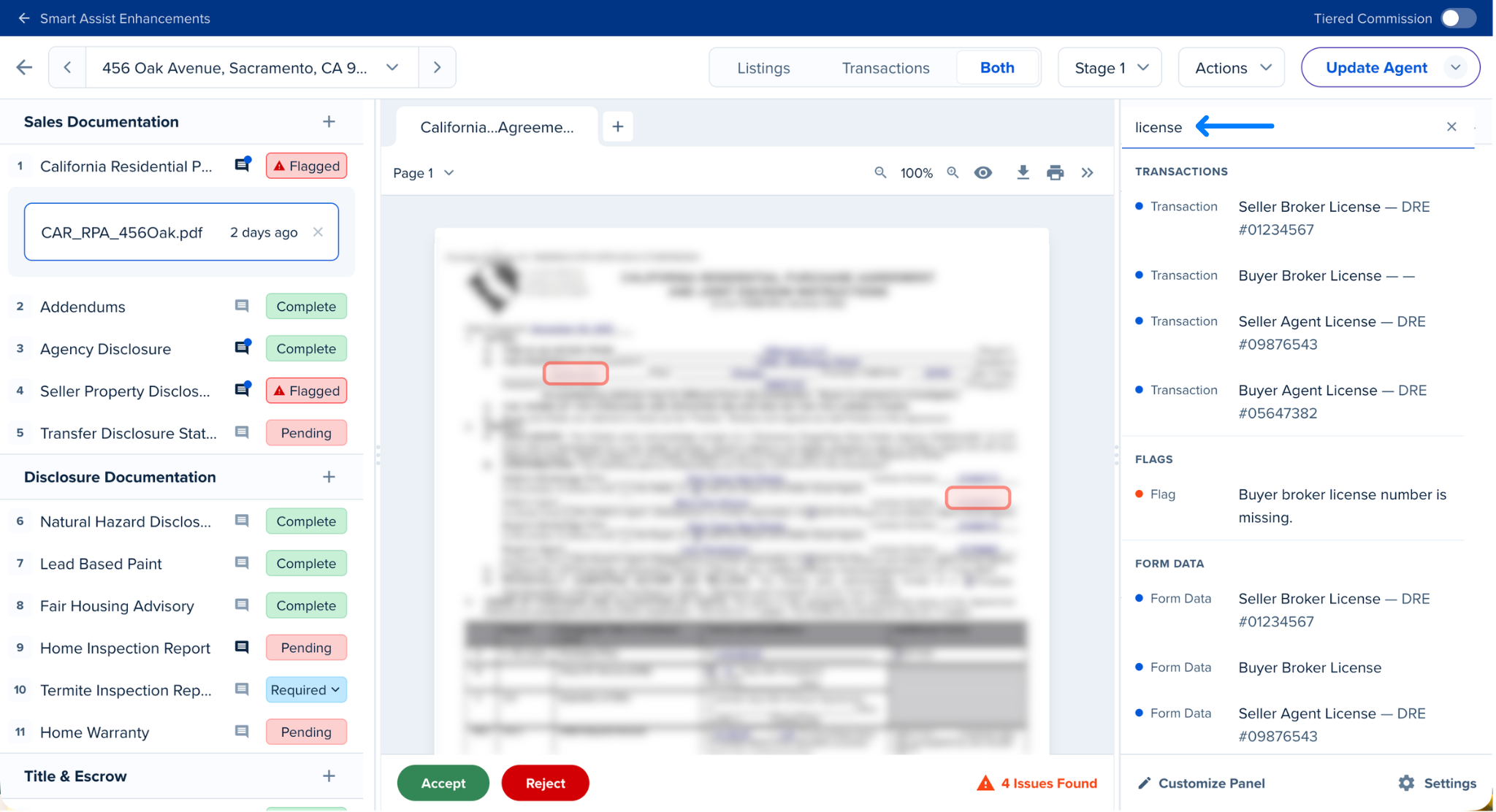
Use the search bar to locate anything and everything within the file. Locate a specific document by name, search for important details such as the initial deposit amount or the down-payment balance. Smart Assist will search across the Listing/Transaction file details, the uploaded forms, and any document flags. Less scrolling, more doing!

Smart Assist Panel on the Checklist
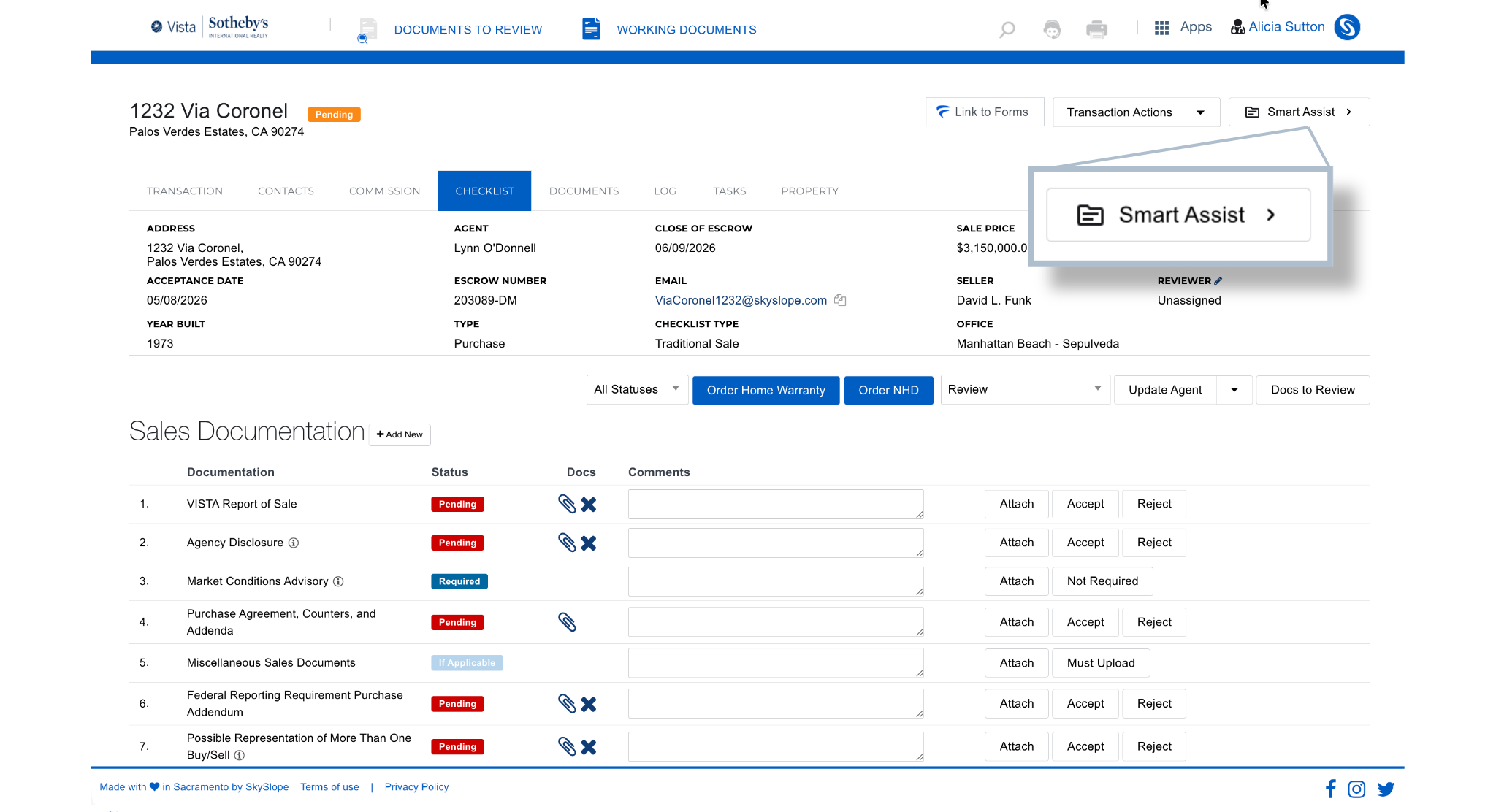
But wait, there's more! You can now access the Smart Assist Panel on the Checklist, too. Simply open your Listing or Transaction file. Then navigate to the Checklist tab and click Smart Assist to view the Smart Assist Panel.
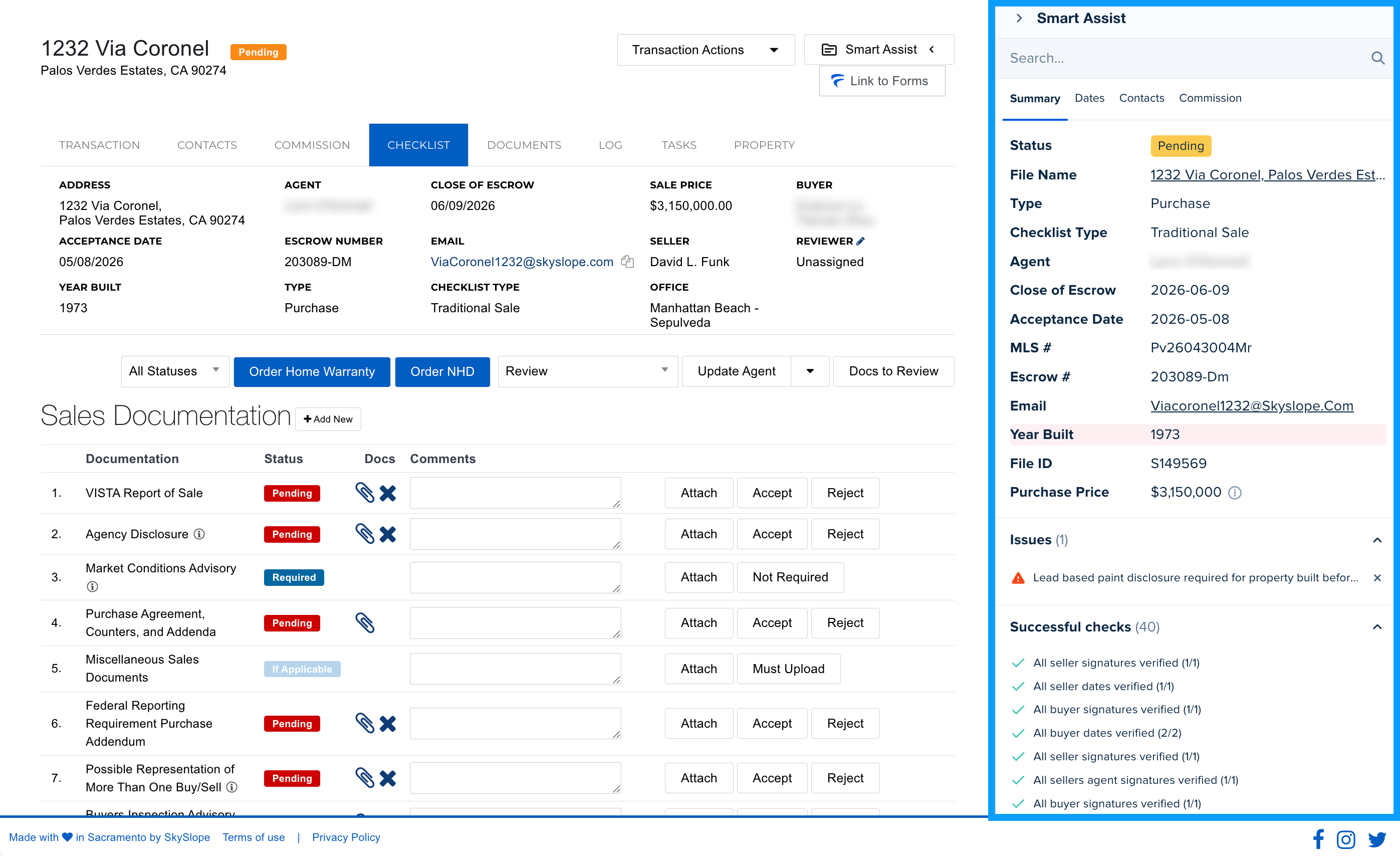
When the panel opens, you can access all of the essential details at a glance:

Checklist Comments
We've made it much easier to view and leave comments on a file's Checklist while in Quick Audit. When the comment icon is bold, that Checklist item has a comment; when it's not bold, there is no comment.
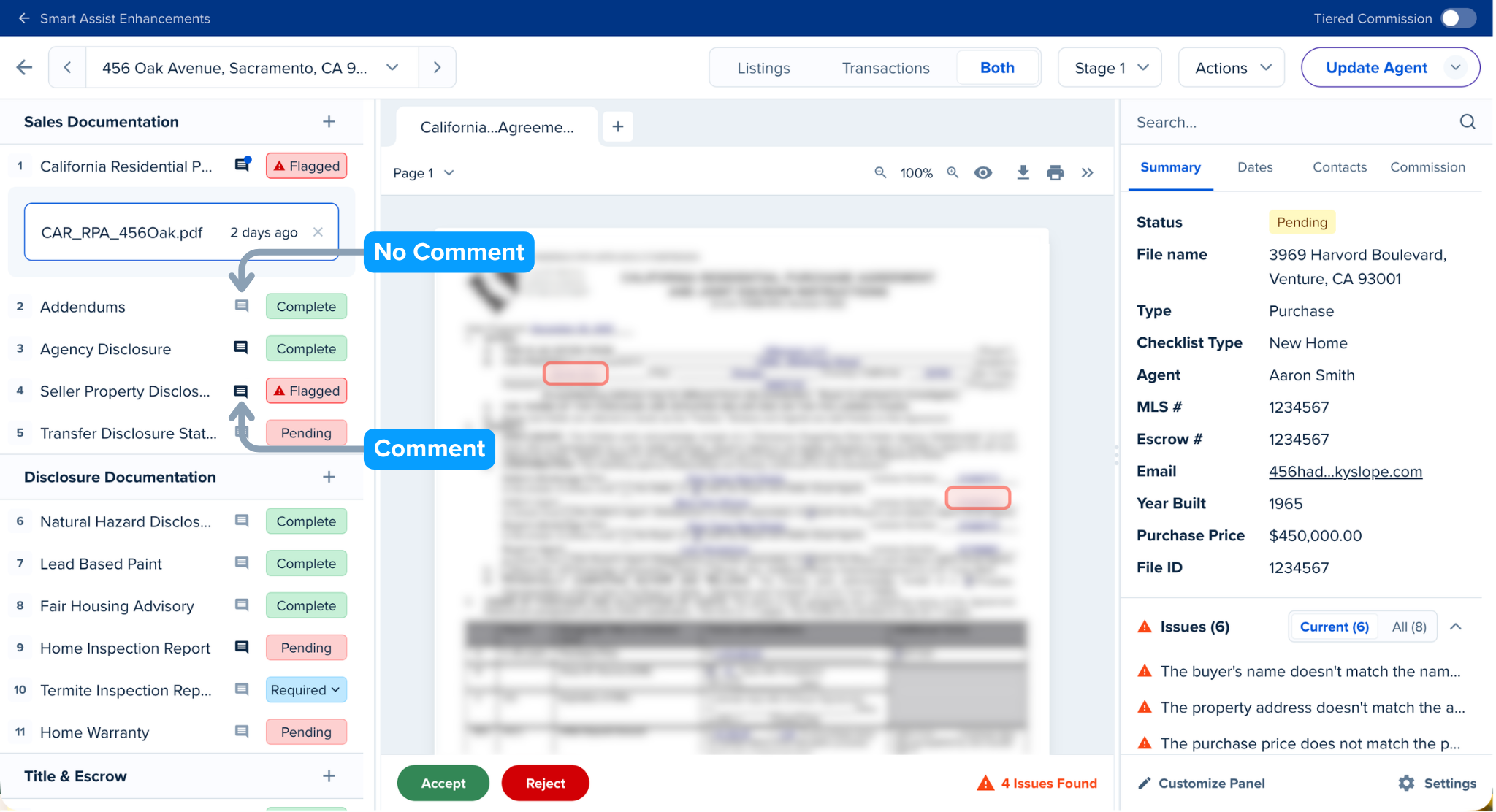
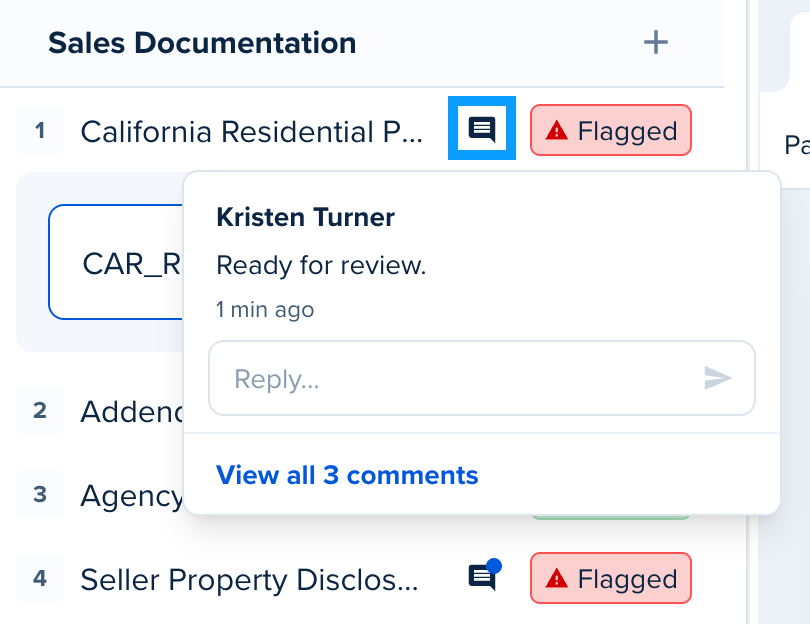 | Click on the comment icon to view the comments or to leave a new comment. |

Customize the Smart Assist Panel
Make the most out of the Smart Assist Panel by customizing it to fit your auditing workflow! Click Customize Panel in the lower right to get started.
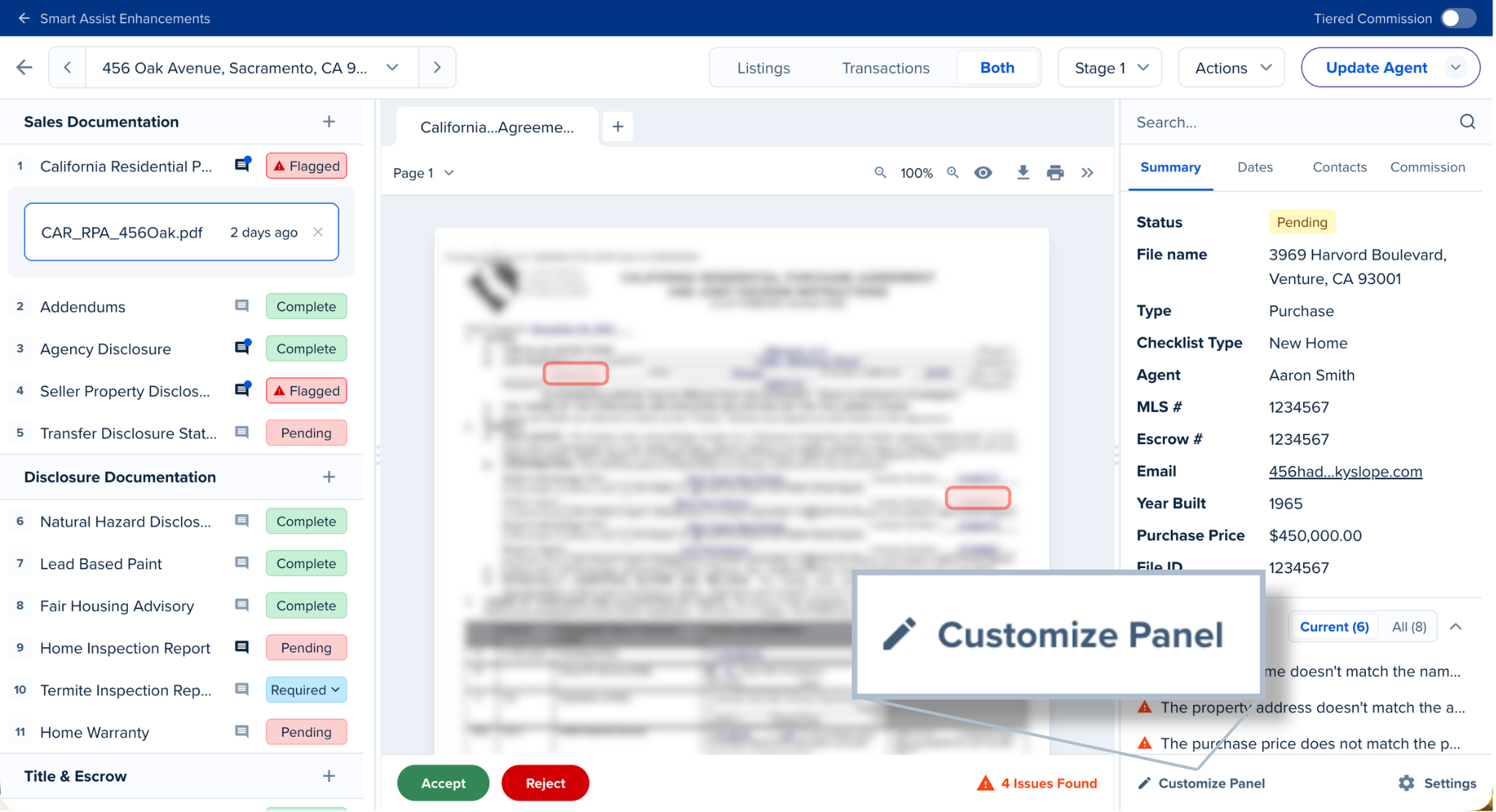
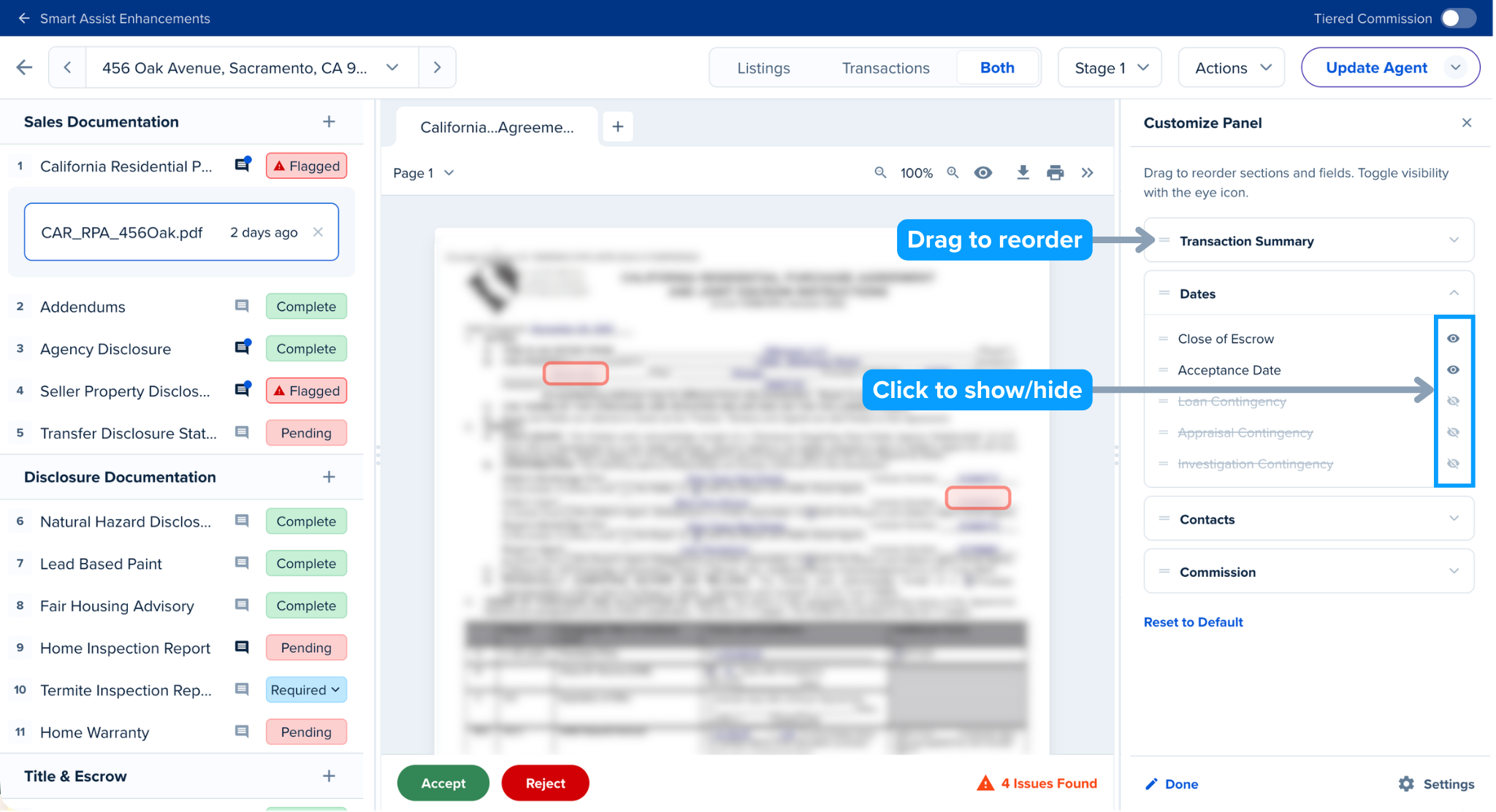
After clicking Customize Panel, you can reorder the tabs in the panel and choose to show/hide various details.
After you've set your preferences, click Close at the bottom to save your changes.

Actions Menu
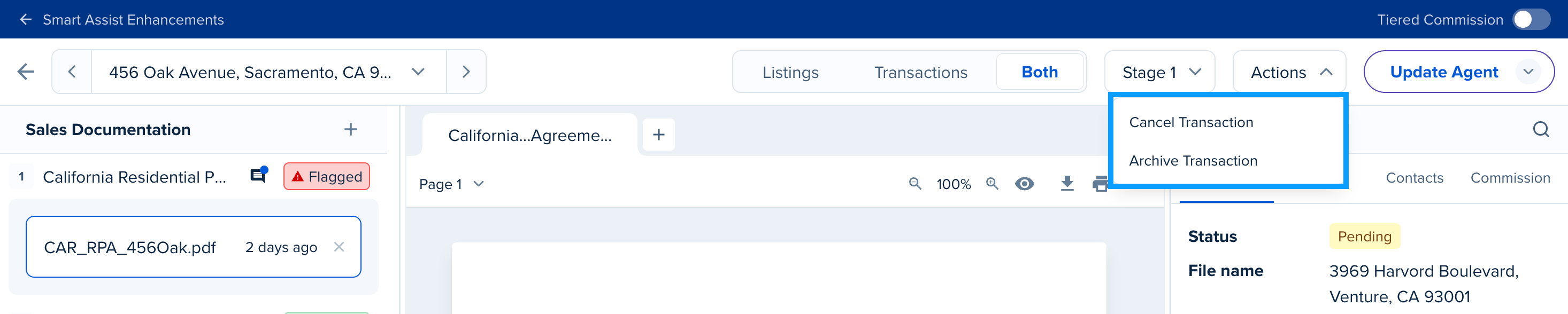
The actions menu has been relocated to the top menu bar for easy access. Click Actions to view a list of available actions for that file, such as Cancel Transaction or Withdraw Listing.
Was this article helpful?
That’s Great!
Thank you for your feedback
Sorry! We couldn't be helpful
Thank you for your feedback
Feedback sent
We appreciate your effort and will try to fix the article