
Our Forms and DigiSign teams have been hard at work to make DigiSign Templates available in SkySlope Forms! Let's dive into how to use DigiSign Templates to save time in SkySlope Forms.
In this article, we'll go over:
DigiSign Templates
What is a DigiSign Template?
A DigiSign Template is a tool you can use repeatedly to prepare envelopes quickly. A Template will automatically place signature, initial, and date blocks onto a document for you. For example, you can upload a buyer-signed offer into DigiSign and apply a seller-signature template onto the buyer-signed offer, and all of the signature and initial blocks that the seller needs will automatically be applied to the document in just a few clicks!
In this article, we will focus on using DigiSign Templates in SkySlope Forms. If you're not familiar with DigiSign Templates, or if you haven't created any yet, use the links below to get started:
Using DigiSign Templates in SkySlope Forms
Before we get started, let's outline some important details.
SkySlope Forms Templates vs. DigiSign Templates
While there are Templates available in SkySlope Forms, it's important to understand the difference between Forms Templates and DigiSign Templates. Forms Templates help you quickly add the correct forms to your file, whereas DigiSign Templates streamline how you prepare and send documents for signature.
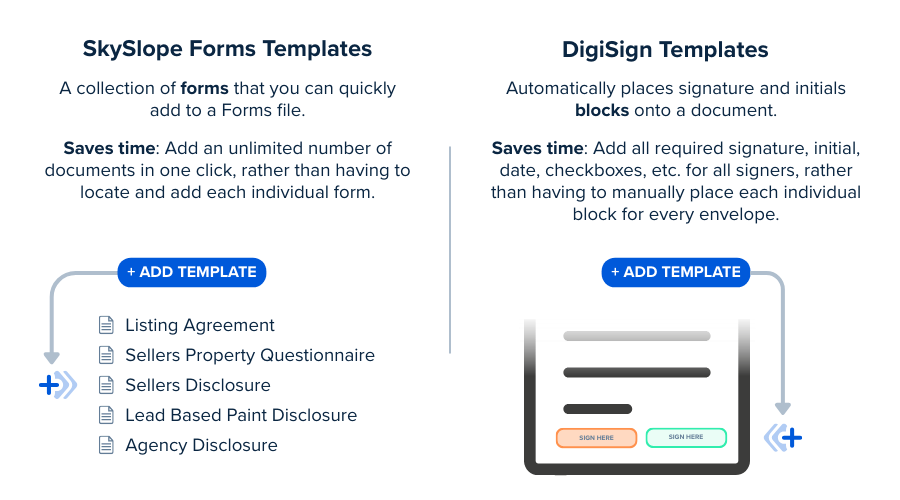
Even though they serve different purposes, both are huge time-savers that help you get deals closed faster!
Getting Started
You can create your own templates or share templates within your office(s).
Applying Templates
Once you have access to DigiSign Templates, you're ready to use them in SkySlope Forms. Follow these steps to apply a DigiSign Template to your Forms envelope:
- Navigate to SkySlope Forms and open your file.
- Select the documents you want to send and click Fill and Send.
- Once your forms are filled out and ready to be sent for signatures, click Prepare Signature.
- The envelope will be created. Name your envelope and select the appropriate signing actions before clicking Next.
- Now you're on the Prepare Envelope page, where you can place signatures and initials. Click Apply Template in the lower right corner.
- A Template menu will open on the right.
- Click on the template name to preview that template on the document. You can click on several different templates to preview them and locate the correct template.
- Click the ⊖ to remove a template. - Once you locate and select the correct template, click Apply.
- Note: Only one template can be applied per envelope. - This will apply the template's blocks (signatures, initials, dates, etc.) to the document.
- Proceed making any necessary changes to the envelope.
- Once you're ready, click Send to send for signatures.
Best Practices
When to Use DigiSign Templates:
- If you are sending a form from one of your Forms libraries, you shouldn't need to use a DigiSign Template. Forms added from Forms Libraries are mapped by our Forms team, so all signature and initial blocks are automatically placed for you!
- If you are sending a brokerage-specific form or a form already signed by one party that you've uploaded from your computer, this will likely be a great opportunity to use a DigiSign Template! Since you are manually uploading these documents, the signature blocks won't automatically be applied. But have no fear—DigiSign Templates are here! Simply upload your form and apply the DigiSign Template, and the signature blocks will be automatically placed for you!
Managing DigiSign Templates:
- While you can use DigiSign Templates in SkySlope Forms, you can't manage them from SkySlope Forms.
- To manage your DigiSign Templates, head over to DigiSign. Navigate to the Templates tab and locate the Template you want to edit. Click the ⋮ icon and select Edit Template.
If you have any questions about using DigiSign Templates in SkySlope Forms, please reach out to our Support team. Happy SkySloping!
Was this article helpful?
That’s Great!
Thank you for your feedback
Sorry! We couldn't be helpful
Thank you for your feedback
Feedback sent
We appreciate your effort and will try to fix the article