
Multi-factor authentication (MFA) adds an extra layer of security to your account by requiring a second form of verification—helping ensure only you can access your information, even if your password is compromised. Depending on your brokerage's account settings, you may be required to enable MFA to log into your SkySlope account.
Click to jump to a section:
Getting Started
Here are a few important notes to keep in mind as you enroll in MFA:
- You only need to complete the enrollment process once.
- After enrolling, you’ll need access to your mobile device when you sign in to SkySlope.
- After enabling, when you attempt to log in, you'll authenticate via your chosen method, when necessary.
- You can choose to receive your verification code through text/phone call, Touch or FaceID, or using an authenticator app.
- Multi-factor authentication may also be referred to as two-factor authentication or TFA.
Enroll in MFA
Once your brokerage has opted to enable MFA, you will be prompted to enroll in MFA for your account.
1. After logging into your account, you will see this screen:
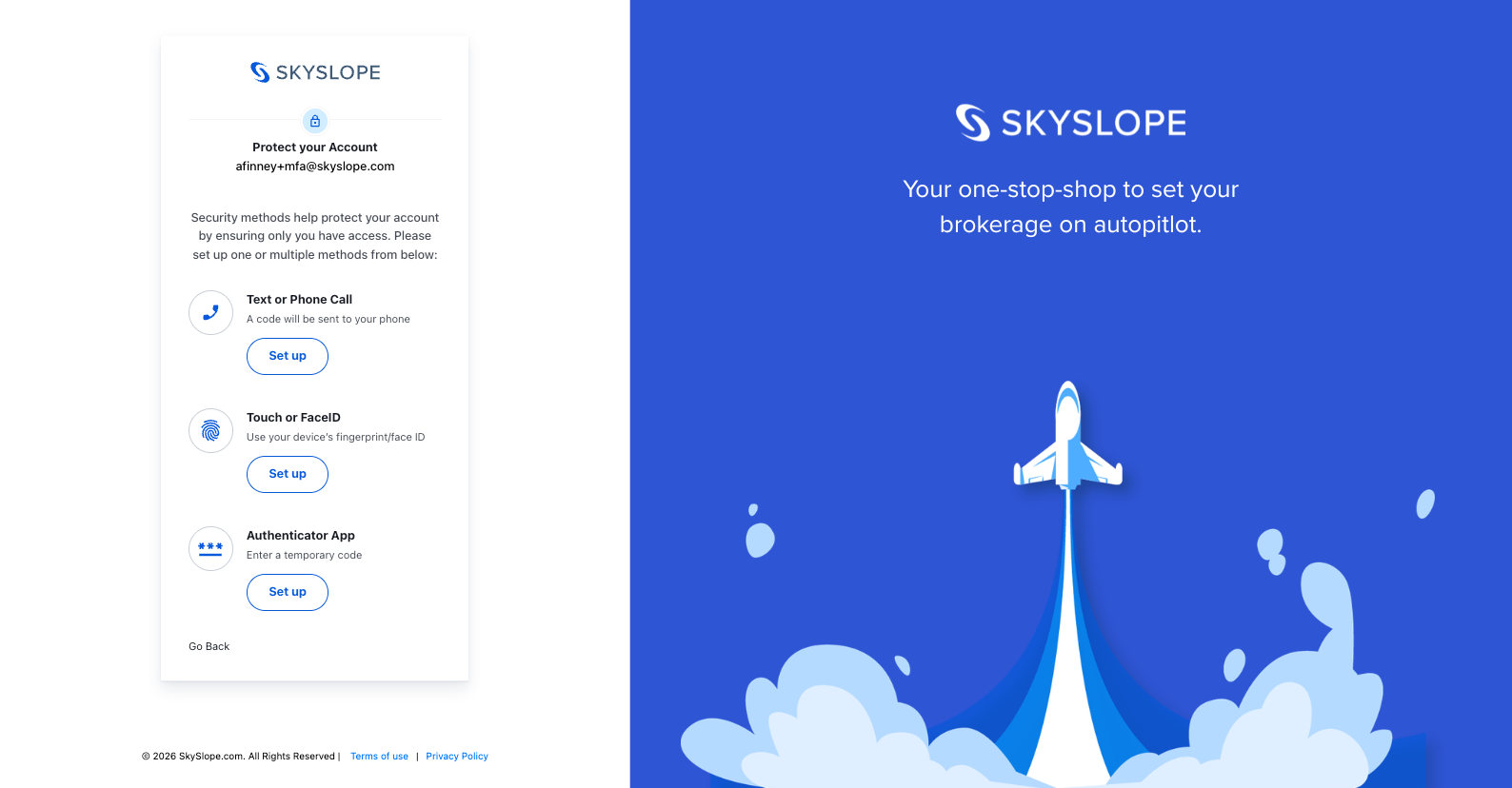
2. Use the widget to enroll your account in MFA. Select one of the three methods you'd like to use to authenticate your account, when applicable.
Note: You can change this option at any time by re-enrolling in MFA with a new authentication method. Navigate here to re-enroll.
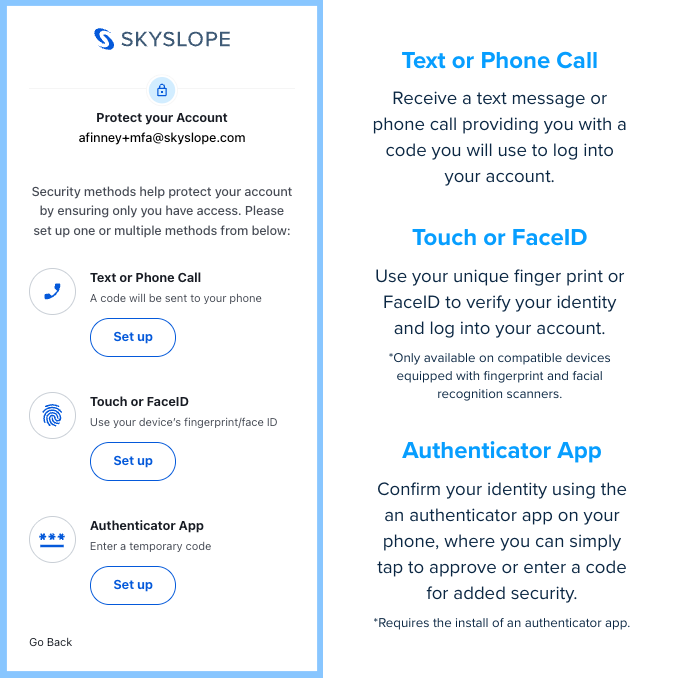
3. Continue below for step-by-step instructions for each verification method.
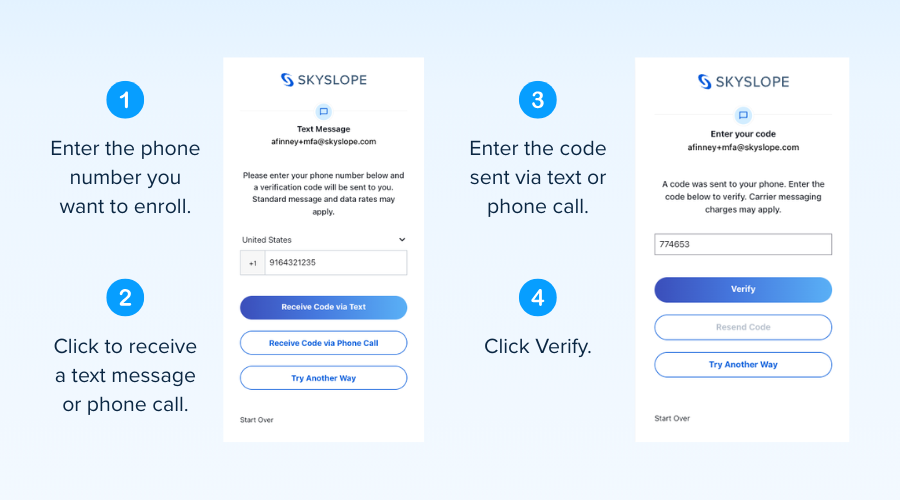
Enroll with Text or Phone Call
If you get stuck or make a mistake, you can click Start Over in the bottom right at any time to go back to the beginning of the enrollment process. After completing enrollment by following the steps below, you will be logged into your account.
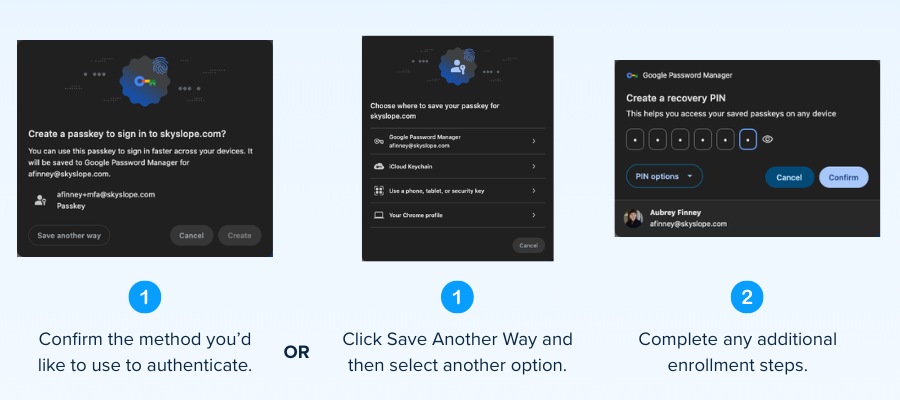
Enroll with Touch or FaceID
If you get stuck or make a mistake, you can click Start Over in the bottom right at any time to go back to the beginning of the enrollment process. After completing enrollment by following the steps below, you will be logged into your account.
Note: Enablement steps for Touch and FaceID will vary slightly across various devices and internet browsers, but should be relatively similar to what is displayed below.
Enroll with an Authenticator App
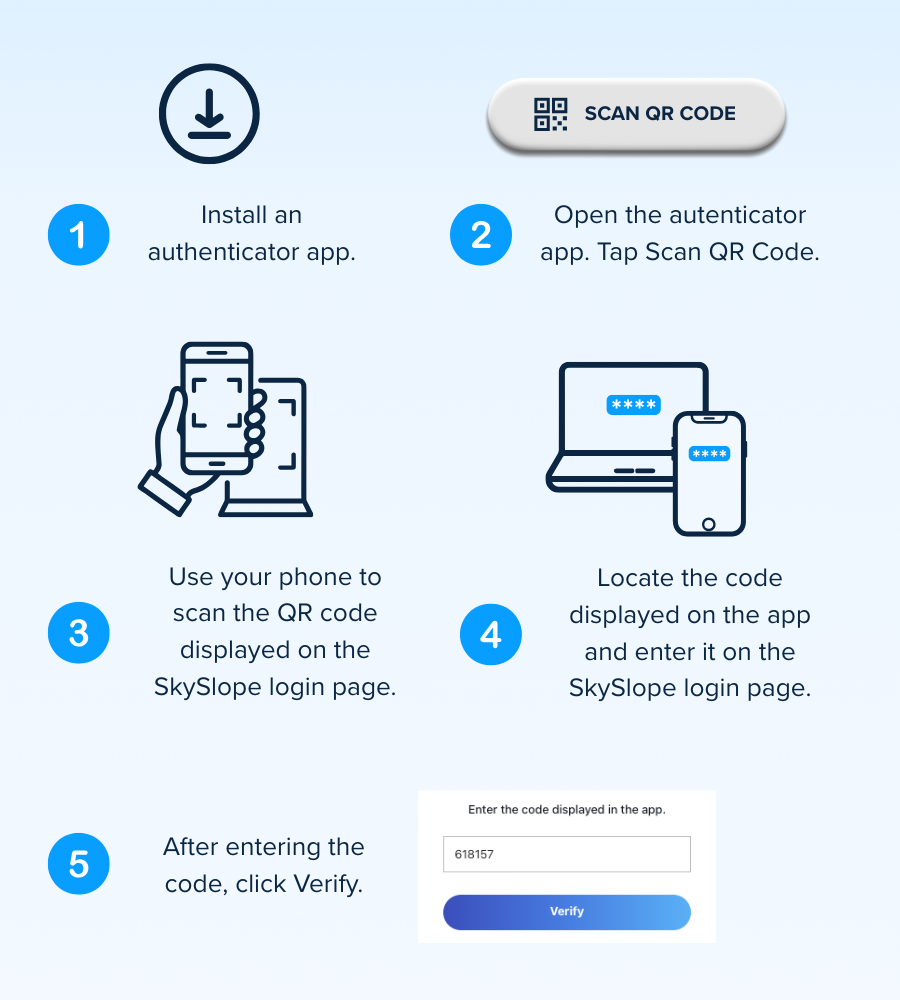
If you get stuck or make a mistake, you can click Start Over in the bottom right at any time to go back to the beginning of the enrollment process. After completing enrollment by following the steps below, you will be logged into your account.
With this MFA method, you can use any authenticator app you prefer. Here are some examples (click the link to download in the applicable app store):
| iPhone | Android |
| Microsoft Authenticator App | Microsoft Authenticator App |
| Google Authenticator App | Google Authenticator App |
| Authenticator App | Proton Authenticator App |
Frequently Asked Questions
How often will I need to authenticate with MFA?
The type of MFA we utilize adds an extra layer of security, but only when it’s actually needed. It looks at things like your location, device, and sign-in behavior to decide if something seems unusual. If everything looks normal, you can log in quickly—but if something seems off, it will ask for additional verification (via MFA) to keep your account safe.
How do I reset my MFA method?
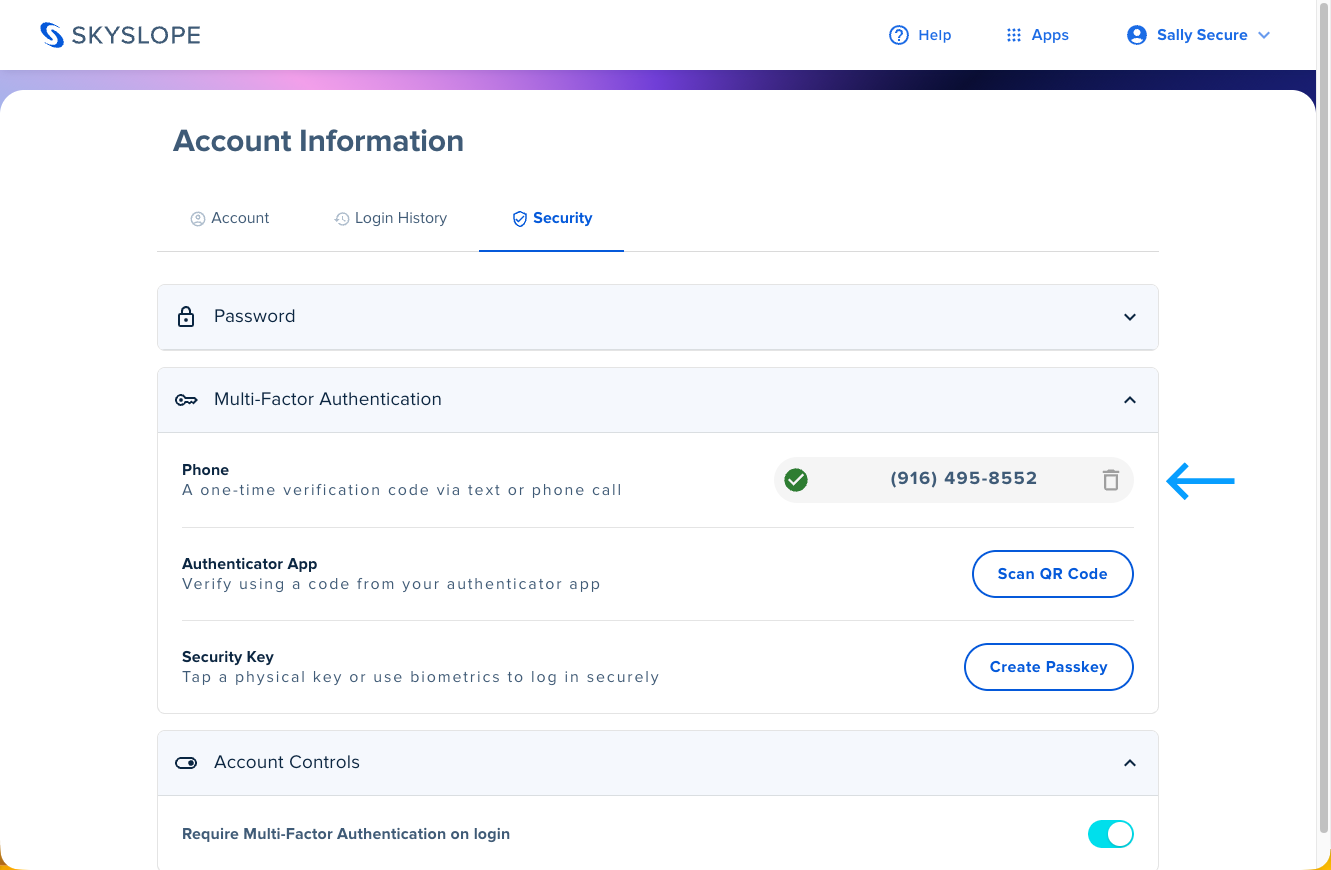
You can manage your selected authentication method here: accounts.skyslope.com. Once in the Accounts hub, navigate to the Security tab. Locate the MFA method you currently have enabled, and click the trash can icon to delete it.
If I currently login via SSO (single sign-on), can I also login via MFA?
Yes, both are available! SSO allows users to access multiple apps with one login, so they don’t have to remember or enter separate passwords for each one. MFA adds an extra layer of security, requiring more than just a username and password to login, when necessary. In conjunction, these two tools make it easier for users to login and ensures data and account security.
If you have any additional questions about logging into SkySlope with MFA, please reach out to our Support team. Happy SkySloping!
Was this article helpful?
That’s Great!
Thank you for your feedback
Sorry! We couldn't be helpful
Thank you for your feedback
Feedback sent
We appreciate your effort and will try to fix the article