
The TC Access feature in SkySlope allows Agents and Transaction Coordinators to work together seamlessly, sharing files and documents. In this article, we'll take a close look at the TC Access feature and how it allows Agents to receive support on their work while still controlling who can access their files.
Click to jump to a section:
Understanding Account Types
First, let's explain the two different account types: Agent and Transaction Coordinator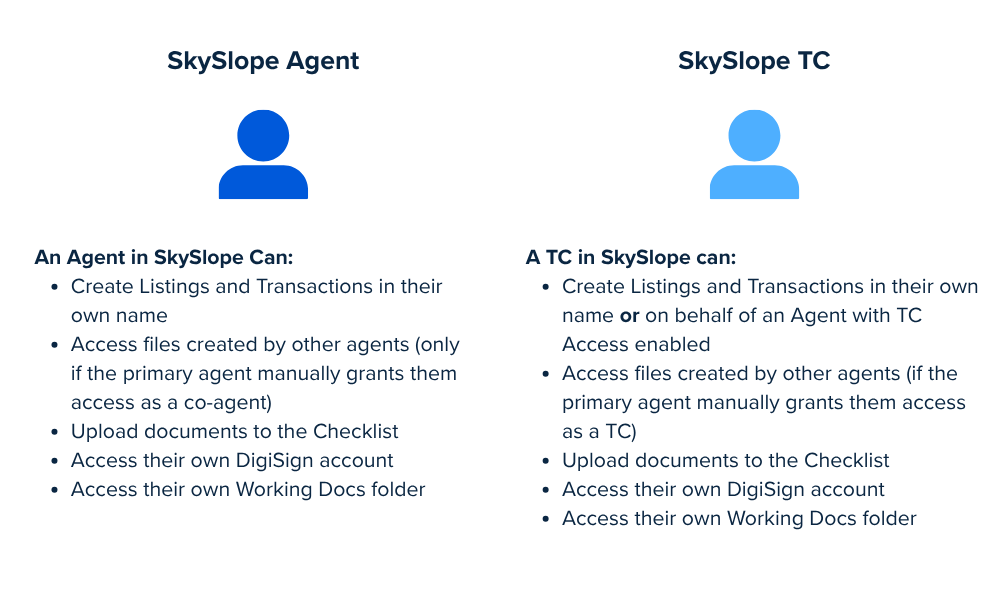
Now, what is "TC Access"?
TC Access allows transaction coordinators (TCs) to create files on behalf of agents in the same office. When TC Access is enabled for an agent, any TC in that office can create files for them. When it's disabled, TCs can't create files for that agent.

Agents can turn TC Access on or off from My Account. Admins and brokers can manage it for any agent from Manage Agents.
Frequently Asked Questions about TC Access
As an agent, does enabling TC Access give the TCs access to ALL of my files?
Have no fear. As an agent, if you enable TC Access in your account, it only allows the TC to:
- Create files on your behalf.
- Access the files they create, and the documents within them.
- Access files that you have created and manually granted them access to.
Can I give a TC access to just one file, instead of all of my files?
Yes! We have a specific workflow for granting a TC access to a single file. Learn how to give access to a single file.
As a TC, what abilities do I have within a file?
If you're a TC and you're working on a file that you created for an agent, or that an agent granted you access to, you will be able to do everything in a file that an agent can do. That includes changing file information (such as the listing/purchase price and the contacts), uploading or removing documents, as well as withdrawing and canceling files.
I just enabled TC Access, but my TC can't see my existing files. What's wrong?
Nothing's wrong. TC Access lets your TC create new files on your behalf, but it doesn't give them access to files already in your account. This keeps you in control of who can see your files (aside from your broker or auditor).
To give your TC access to an existing file, add them as a TC on that file. Learn how to share files with a TC or another agent.
From a compliance standpoint, if both an Agent and a TC are working on the file, how do we know who has done what?
As long as the Transaction Coordinator has their own TC account, and is not accessing the files by using the Agent's login email address and password, everything will be recorded on the Log tab of the file. All actions are recorded in the file depending on who has done them; this is also true for Auditors and Brokers taking action in the file.
Here's a snapshot of how actions are recorded on the Log: 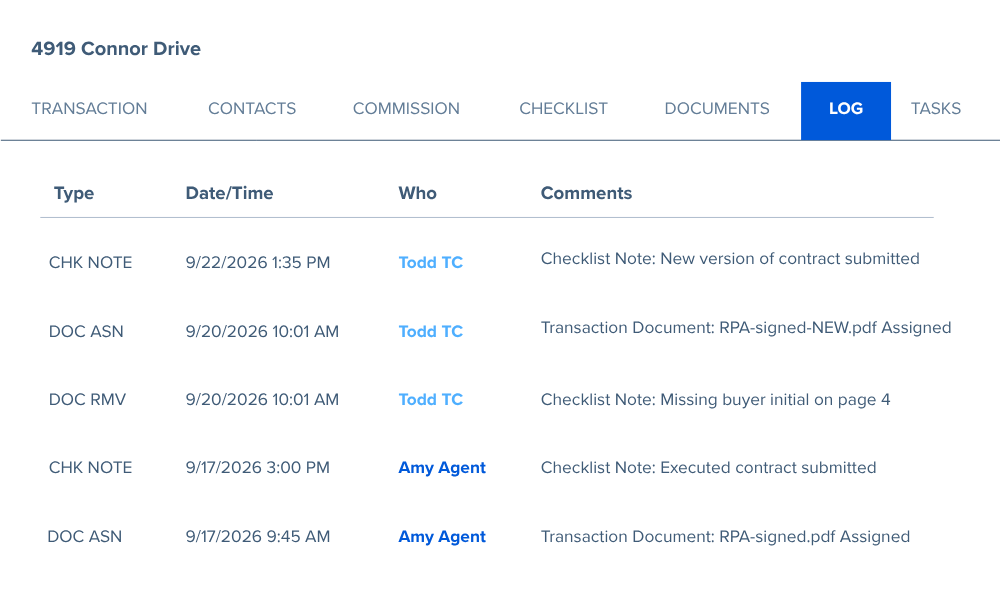
Enabling TC Access
Follow the steps outlined below to enable TC Access for yourself, or for another agent (if you have admin access).
Enabling as an Agent
- Log in to your SkySlope account.
- Click on your name in the upper right.
- Select My Account.
- In the Personal Information section of your account settings, locate the TC Access toggle switch.
- Set the toggle switch to ON (blue).
- Click Save.
Enabling TC Access for an Agent as an Admin
- Log in to your SkySlope account.
- Click on your name in the upper right.
- Select Admin.
- Navigate to the Manage Agents tab.
- Search for the agent and click their name to open their account settings.
- Locate the TC Access toggle switch.
- Set the toggle switch to ON (blue).
- Click Save.
If you have any additional questions that weren't answered in this article, don't hesitate to reach out to our Support team at support.skyslope.com! We are happy to answer any questions you have.
Was this article helpful?
That’s Great!
Thank you for your feedback
Sorry! We couldn't be helpful
Thank you for your feedback
Feedback sent
We appreciate your effort and will try to fix the article