
Working with a transaction coordinator or co-agent? SkySlope makes it easy to bring them into a file so you can collaborate without the back-and-forth. Here's how to grant file-level access to a TC or another agent.
Click to jump to a topic:

Share a File with a TC
If you and a Transaction Coordinator (TC) are collaborating on a deal in SkySlope, you can share the file with them in just a few clicks. This ensures that all necessary parties have access to the entire file and all its documents.
Add a Transaction Coordinator (TC)
Note: As an Agent, you must have "TC Access" enabled on your account to share files with your TC. Learn how to enable TC Access.
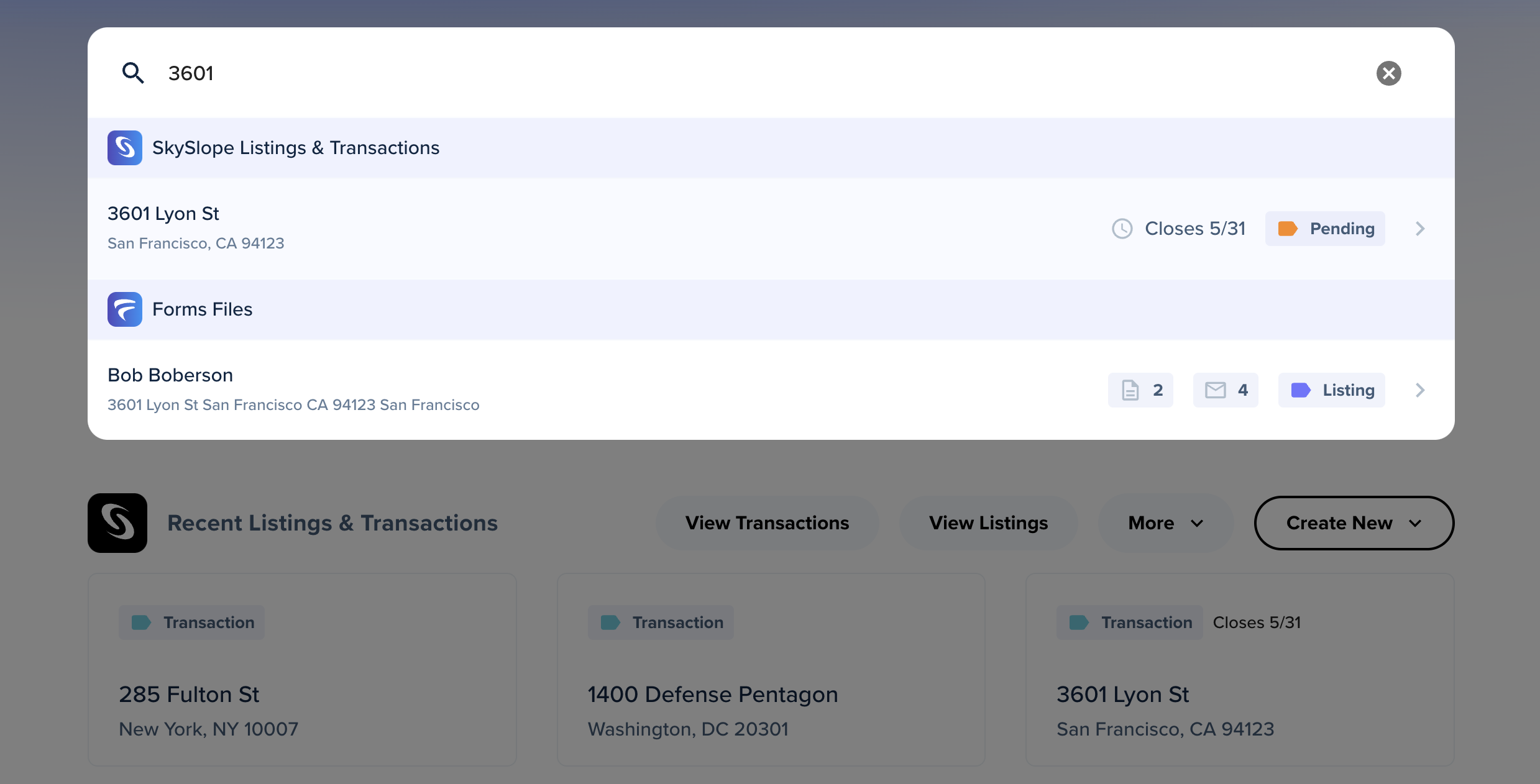
1. First, open the SkySlope file. Click on View Listings or View Transactions or use the Search Bar on the homepage to locate the address, and then single-click open the file.
Note: This can be completed during the creation of a new Listing or Transaction file, or by opening the file after it's created.
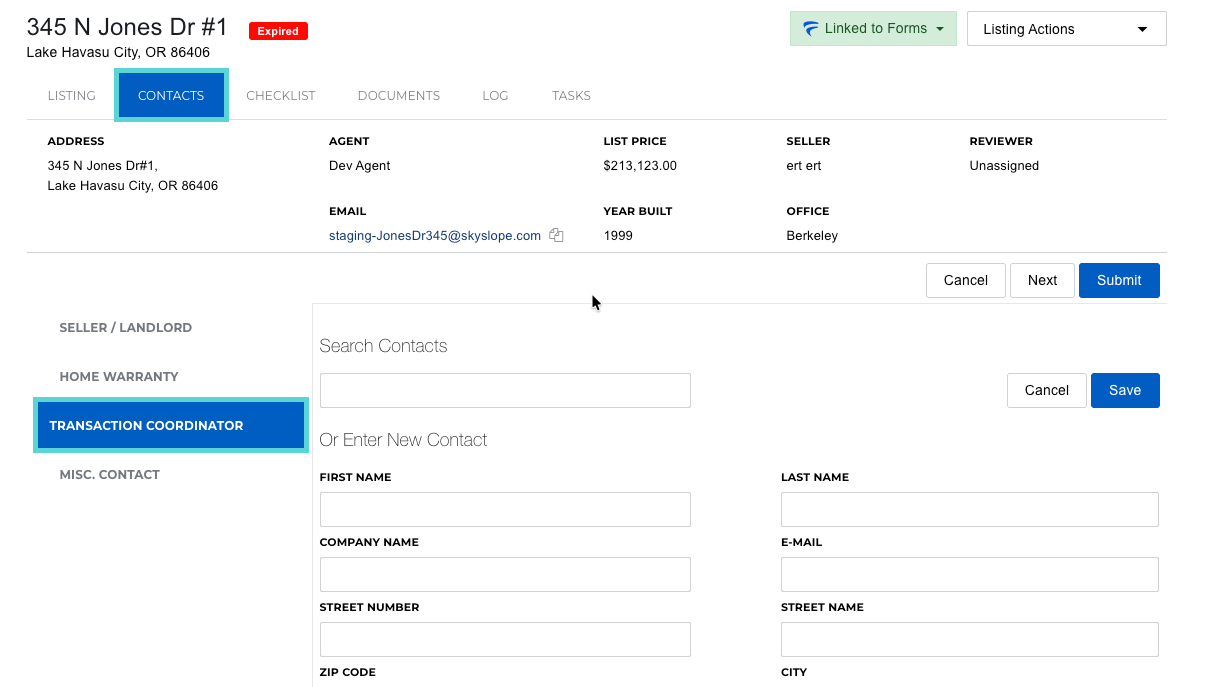
2. Once the file is open, navigate to the Contacts tab. Then locate the Transaction Coordinator contact.
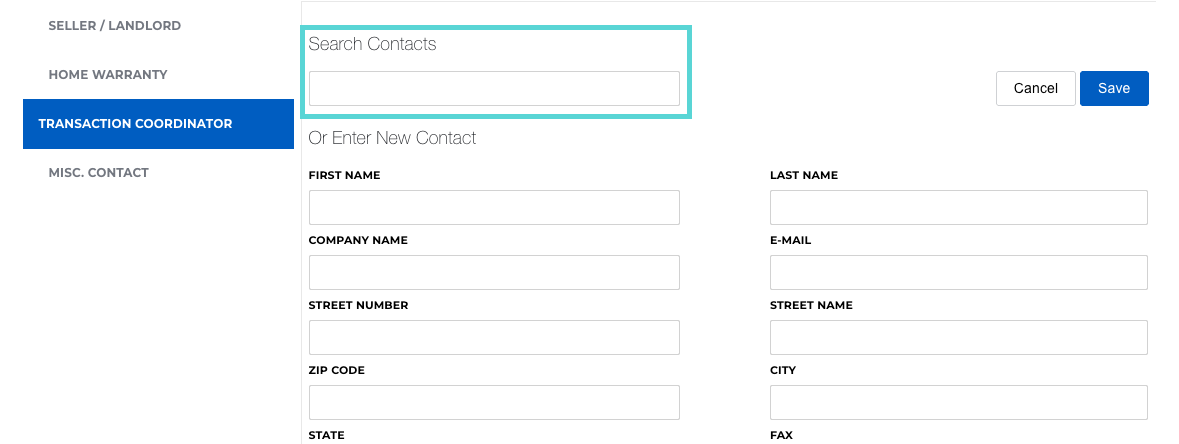
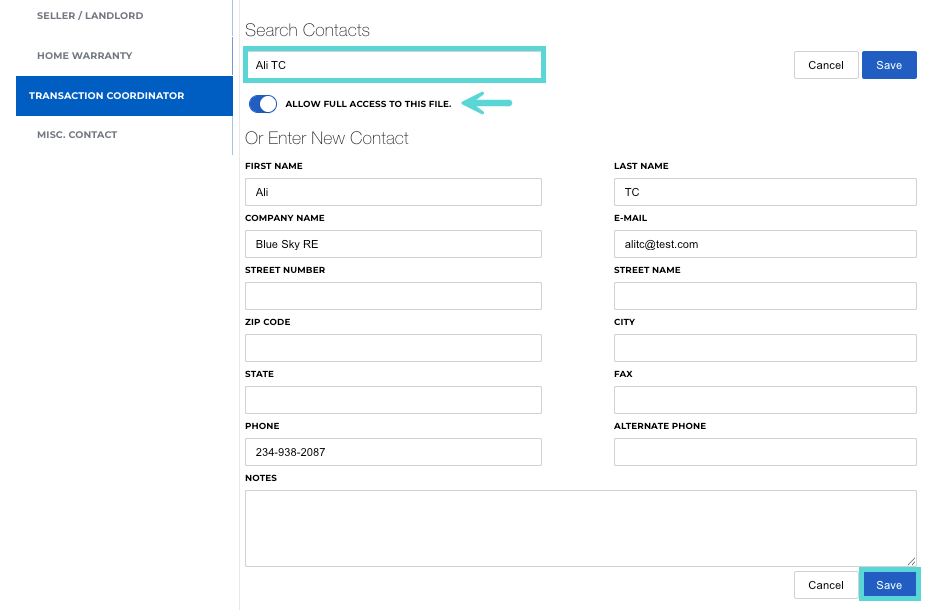
3. Important: Locate and click on the Search Contacts tool. Search for the TC's name and select the matching contact.
It's essential that you use the Search Contacts tool to locate an existing contact from your brokerage's directory. This means the TC must have a SkySlope account under the same brokerage as you. This is the only way to grant them access to the file. If you simply type their name in the First Name and Last Name fields, you are only listing their name as a TC; you will not grant them access this way.
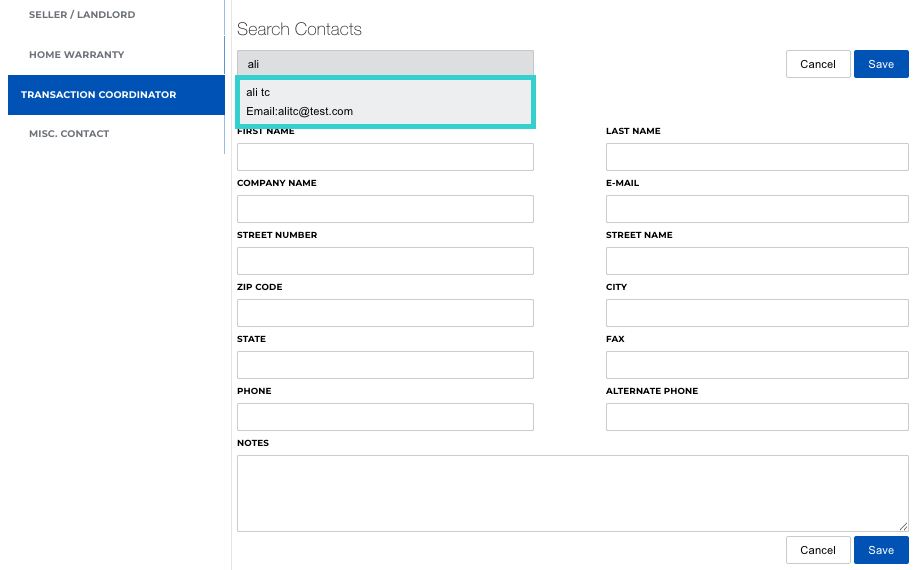
4. Once their contact details autofill, locate the access toggle switch and set it to ON (blue). This will grant the TC access to your file.
Important Note: You will only see the toggle switch if the contact you've selected 1) is in the same office as you, and 2) has a TC account.
Recording TC Fees
Follow these steps to record the fee being paid to the Transaction Coordinator for this deal:
- Open the Listing or Transaction file and navigate to the Commission tab.
- Locate the Transaction Coordinator Information field.
- The TC's name will autopopulate from the Contacts tab. Next to the TC's name, add their fee for this deal.
- Click Submit to save your changes.
Note: You will only see the field to record a TC Fee if you have added a TC to the Contacts of this file.
Remove a TC
- Open the Listing or Transaction file and navigate to the Contacts tab.
- Once on the Contacts tab, click on the Transaction Coordinator contact.
- Locate the TC you want to remove. Click Remove.
- You will see a pop-up asking you to confirm removing this TC from the file; click Yes, Remove to confirm.
- Your changes will be saved automatically.

Share a File with a Co-Agent
Note: This can be completed during the creation of a new Listing or Transaction file, or by opening the file after it's created.
1. First, open the SkySlope file. Click on View Listings or View Transactions or use the Search Bar on the homepage to locate the address, and then single-click open the file.

2. After opening the file, click on the Listing or Transaction Tab. On this page, locate the Co-Buyer Agent or Co-Listing Agent field. Click on Add to add another agent. Begin typing the agent's name to search for agents in your company. Once the agent is found, click on their name and then click Save Co-Agent.

3. Now the page will redirect back to the Listing tab.
Important: Click Next in the lower-right corner to save the changes made by adding the other agent. This will officially grant the other agent access to the file.

Remove a Co-Agent
- Open the Listing or Transaction file.
- Click on the Add button next to the Co-Agent field.
- Click on the X to remove the other agent's name.
- Then click Share.
- Once the pop-up closes, click Next in the bottom right to save your changes and officially remove the other agent's access.
If you have any other questions about sharing files, don't hesitate to contact our Support team. Happy SkySloping!
Was this article helpful?
That’s Great!
Thank you for your feedback
Sorry! We couldn't be helpful
Thank you for your feedback
Feedback sent
We appreciate your effort and will try to fix the article