
Get one step closer to closing with the Buyer Home Estimate calculator in SkySlope Forms. Use the home estimate calculator to confidently tell your buyer what their monthly payment will be and how much cash they need to close. Leverage data from your Forms file to create a branded estimate to share with your client in seconds.
Note: The buyer home estimate calculator is currently available for select brokerages.
Access the Buyer Home Estimate
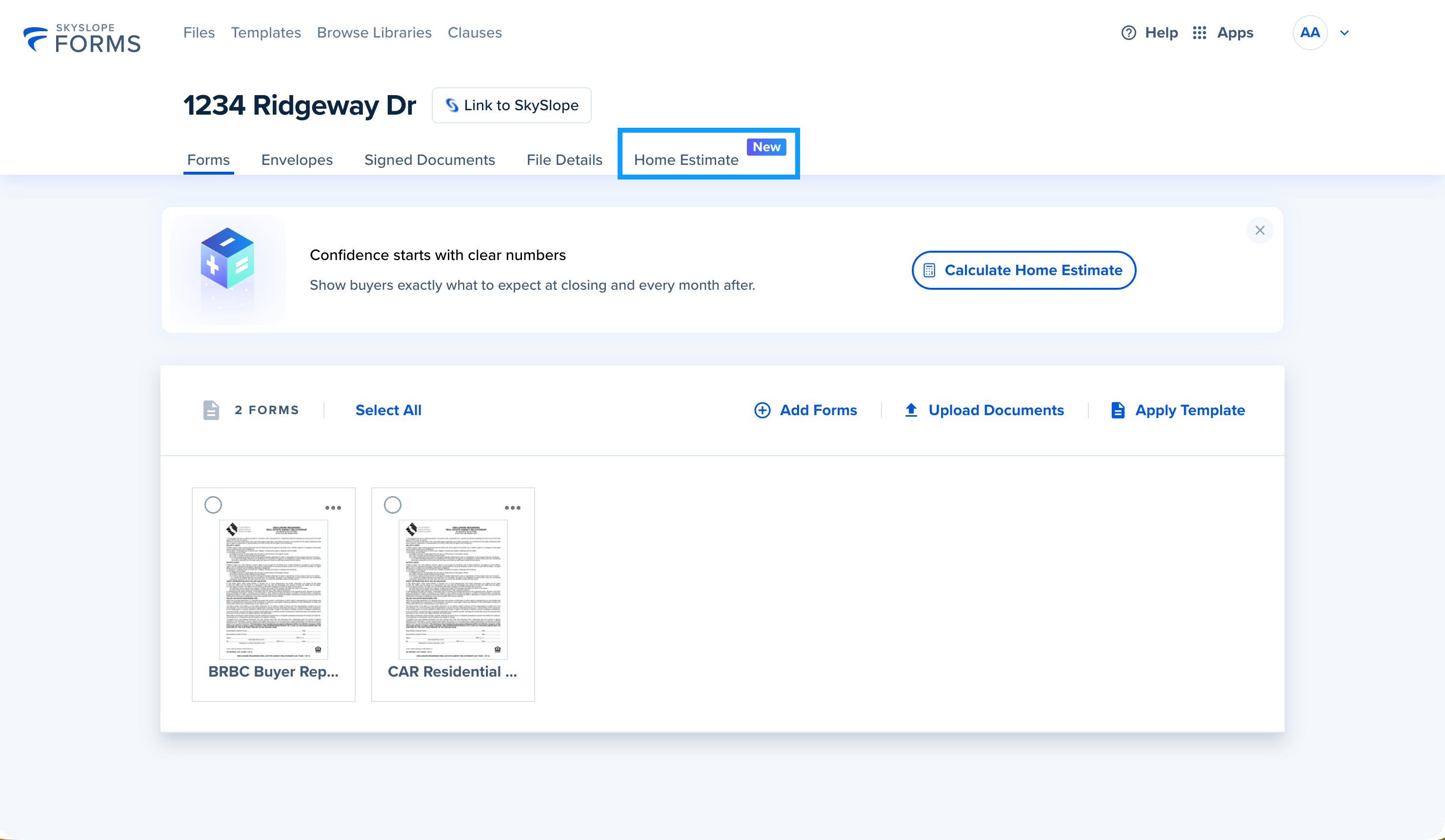
To access the buyer home estimate tool, start by opening your Buyer file in SkySlope Forms. Locate the Home Estimate tab near the File Details tab, towards the top of the page.
Prepare a Buyer Home Estimate
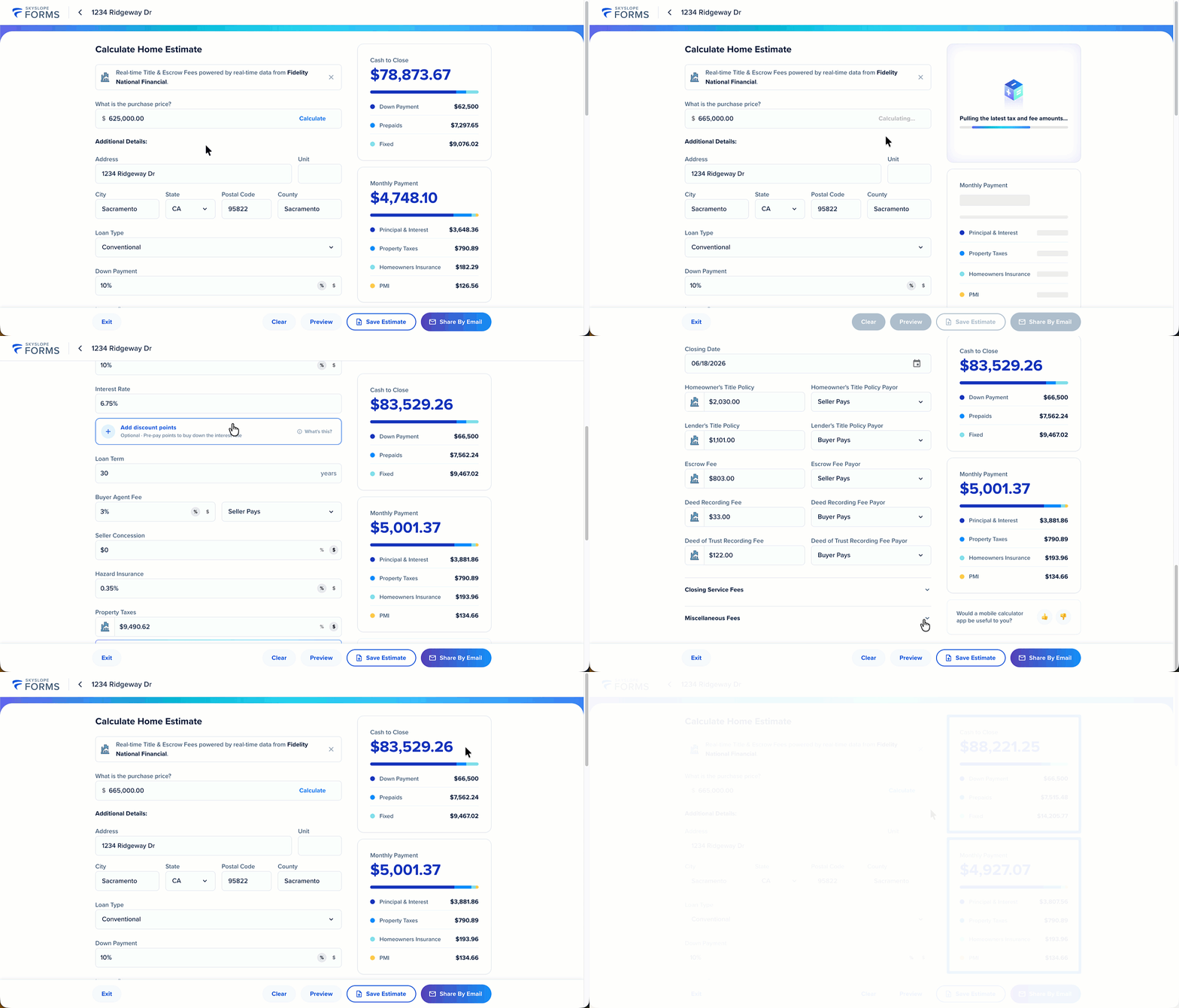
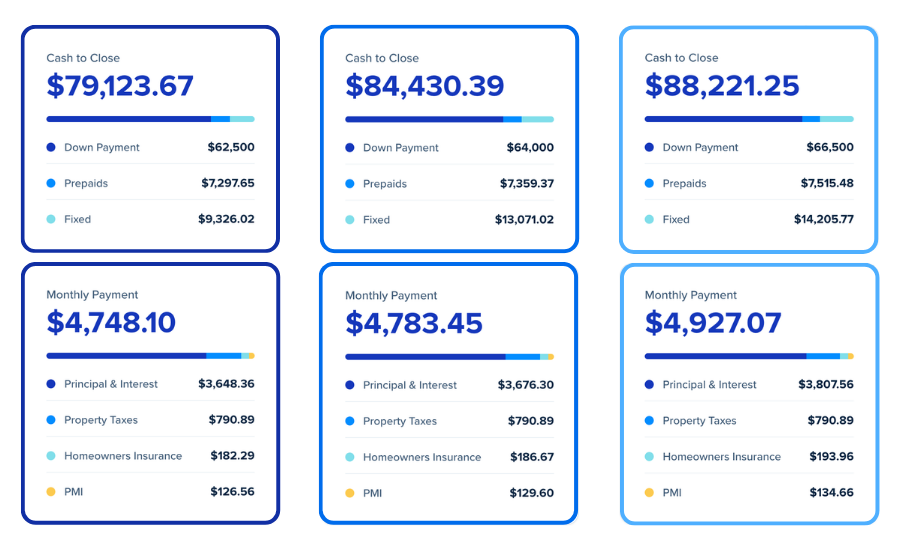
Here you'll see the buyer home estimate tool. We will combine details from your Forms file and contracts, such as purchase price, loan type, downpayment amount, and commission percentages, to help prepare an estimate of your buyer's monthly payments and closing costs. Use the calculator to easily adjust variables—such as purchase price, commission, or fees—to show buyers how different scenarios affect their monthly and closing costs.
Simple planning and clear estimates with Buyer Home Estimates:
Generate and Share Home Estimate PDF
After you've prepared your estimate, click Save Estimate to generate a PDF. This PDF will automatically be added to your SkySlope Forms file. Return to the Home Estimate calculator in SkySlope forms to make changes and generate a new estimate at any time.

You can also share the home estimate via email!

The home estimate is automatically generated as a PDF and attached to the email. When the email modal opens, you can add your recipient(s). Feel free to customize the subject line and email message, or send the default message as is. Then click Send!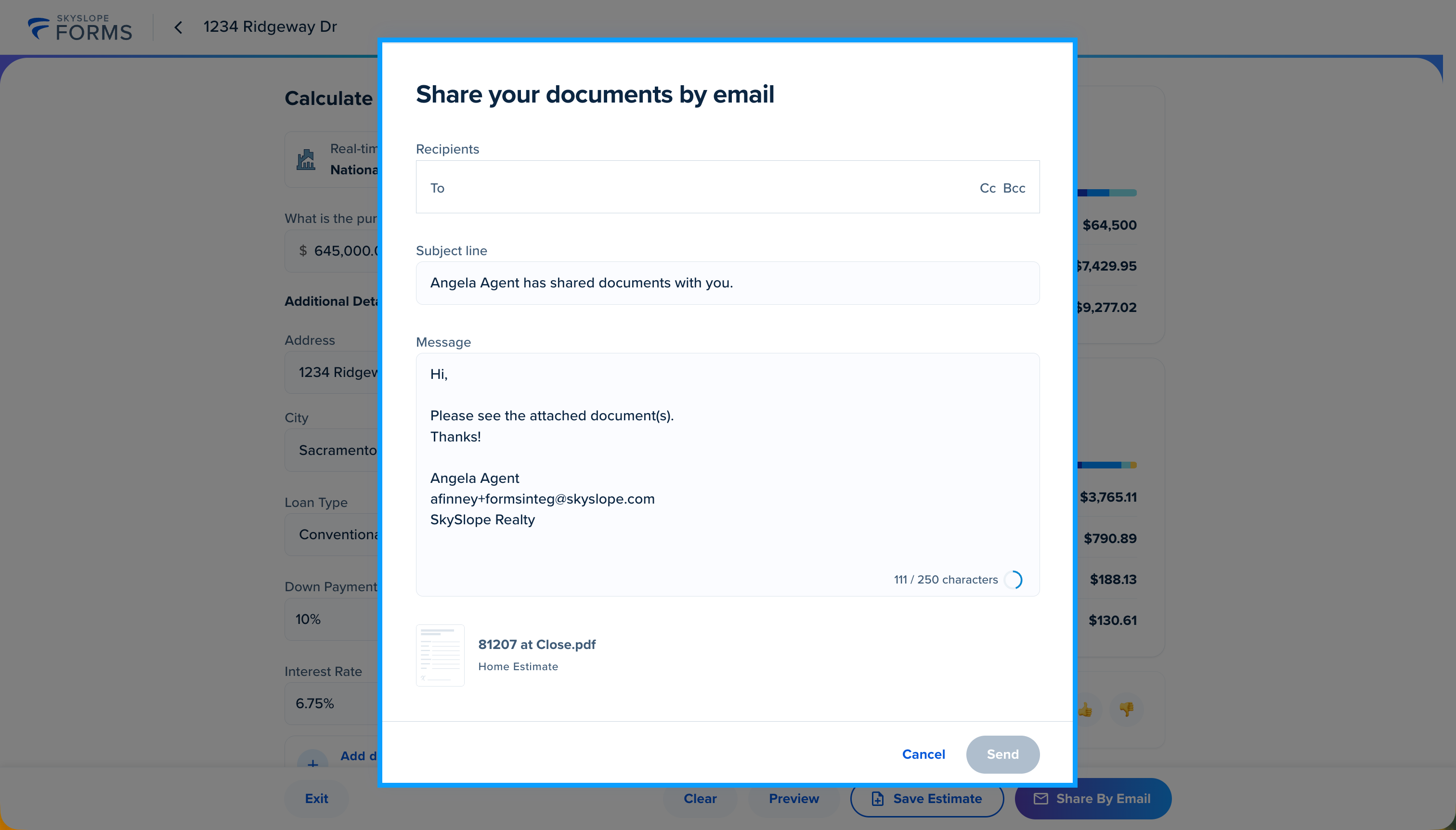
If you have any questions about using the Buyer Home Estimate tool in SkySlope Forms, please reach out to our 24/7 Support team. Happy SkySloping!
Was this article helpful?
That’s Great!
Thank you for your feedback
Sorry! We couldn't be helpful
Thank you for your feedback
Feedback sent
We appreciate your effort and will try to fix the article