
In this article, we'll review how to get the most out of the Office Inbox and use it to optimize your office's workflow. Let's dive in!
In this article, we'll review:
Getting Started
First things first, what is the Office Inbox?
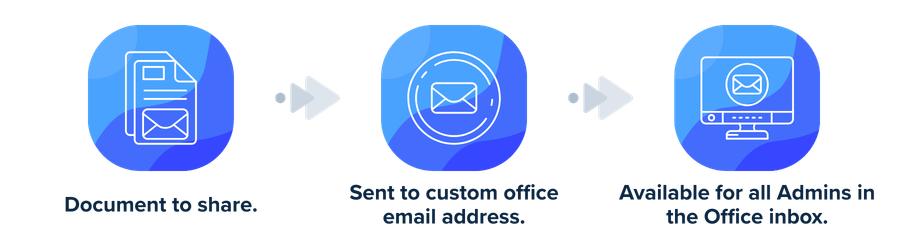
The Office Inbox is a document inbox connected to a customizable email address that helps your office manage various documents.
How can our office set up the Office Inbox?
Before you can use the Office Inbox, it needs to be enabled. Follow these steps to enable the inbox and customize your office's email address:
- Log in to your account.
- Click on your name in the upper right and select Admin.
- Navigate to the Manage Offices tab.
- Locate the office you want to set up the Office Inbox for. Click on the office name to open the office's settings.
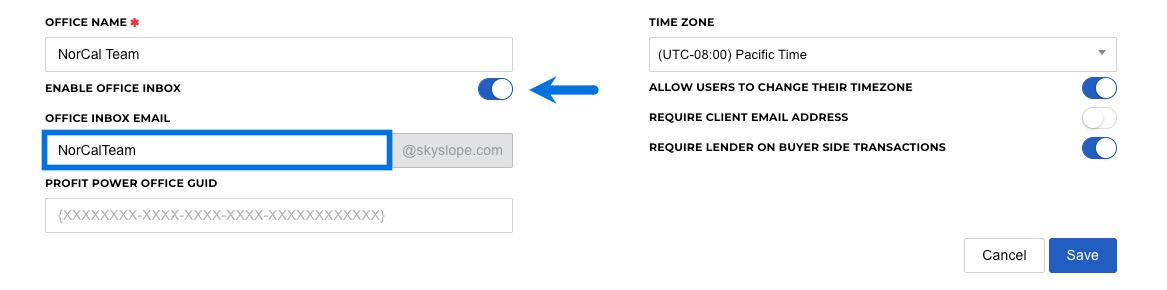
- Locate the Enable Office Inbox toggle switch. Ensure it's set to on (blue).
- Once enabled, locate the Office Inbox Email field. Type your office's custom email address.
Note: You don't need to type "@skyslope.com"; it will be added automatically. Just type the portion of the email address before the @ symbol.
Here are some examples:
- [email protected]
- [email protected]
- [email protected] - Click Save.
Using the Inbox
Once the inbox has been enabled and you've customized the email address, you're ready to rock! Now we'll take a closer look at what you can accomplish using the Office Inbox.
Sharing Documents
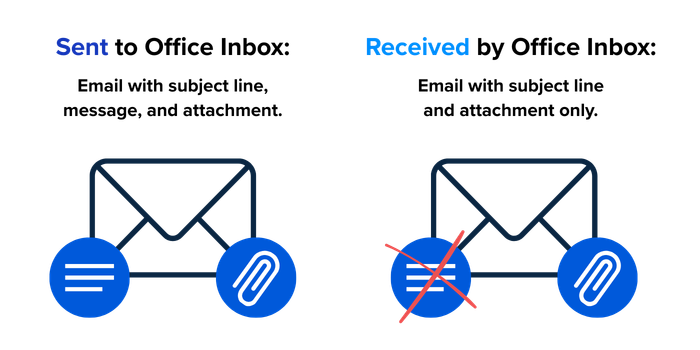
Any document that is emailed directly to the custom office email address will land in the Office Inbox, which is part of Working Documents. One important thing to note about the Office Inbox is that it's exclusively used for sharing and storing documents. The body of the email will not be recorded or visible in the Office Inbox; only the subject line and attached documents will be visible.
Accessing the Inbox
The Office Inbox is accessible only to SkySlope Admins. Follow these steps to access the Office Inbox:
- Log in to your account.
- From the dashboard, navigate to Working Documents.
- Locate the Office Inbox tab. Here you will find any documents sent to the Office Inbox.
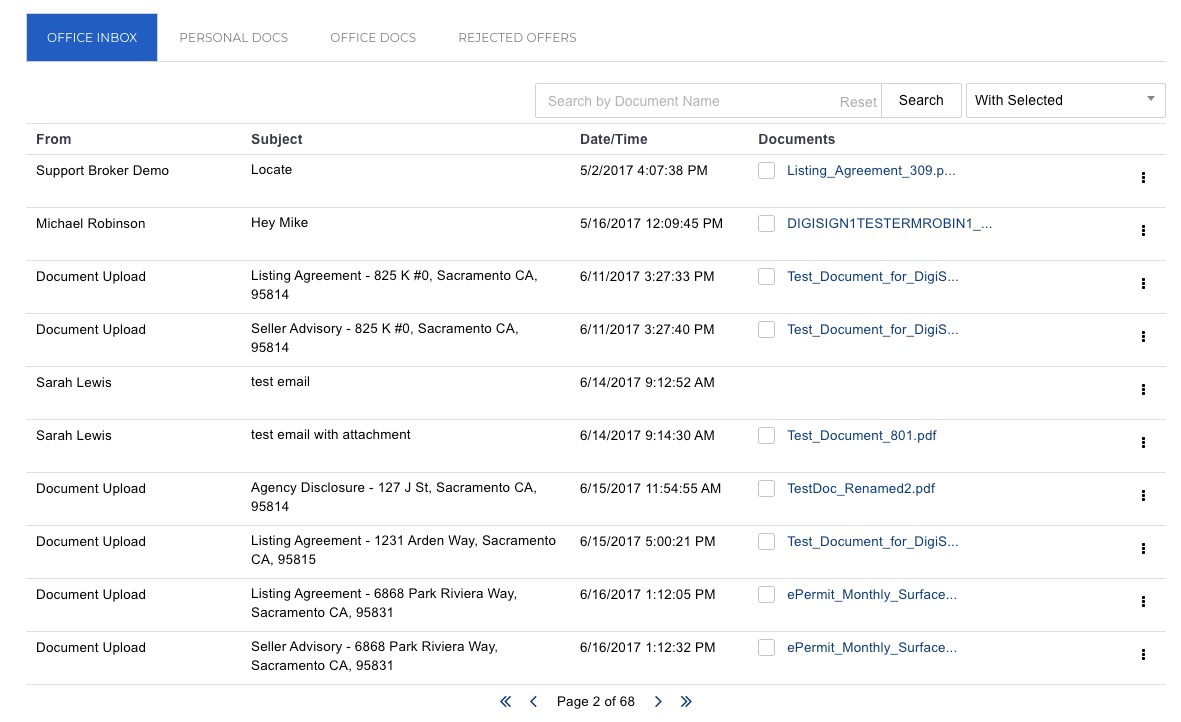
For each email received, you will see:
- From: Who sent the email. "Document Upload" means this document was sent to the Office Inbox from the Inbox Update feature. Learn more about using the Inbox Update feature.
- Subject: Subject line of the email.
- Date/Time: When the email was sent.
- Documents: Files attached to the email.
Managing Documents in the Office Inbox
Once a document has arrived at the Office Inbox, there are a few different actions you can take. Check the box next to the document you want to manage and then click With Selected in the upper right to select your action for that document.
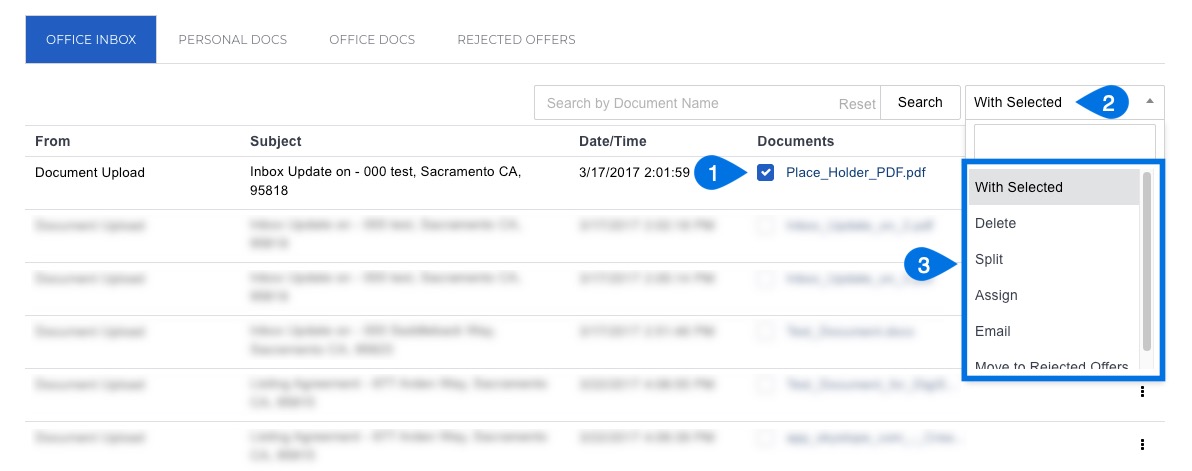
Split
If the document is a document packet that needs to be separated into individual forms and then attached to the Checklist, select Split from the drop-down.
- Select the document and click With Selected in the upper right.
- Click on Split.
- After clicking Split, you will be prompted to select which Listing or Transaction file the document belongs to. Locate the file and click Select.
- Next, you can split the document. Enter the appropriate name and page range for each document.
- When you are done, click Split (docs go to the Documents tab) or Split and Assign (docs go to the Checklist). The individual documents will be moved to the property file and/or assigned to the Checklist.
Note: Once the document is Split & Assigned, it will be moved from the Office Inbox to the selected property file. The document will no longer be accessible in the Office Inbox.
Assign
If the document is ready to be moved from the Office Inbox to a property file, you can follow these steps:
- Select the document and click With Selected in the upper right.
- Click on Assign.
- After clicking Assign, you will be prompted to select which Listing or Transaction file the document belongs to. Locate the file and click Assign.
- The document will be moved, and you will return to the Office Inbox.
Note: Once the document is assigned, it will be moved from the Office Inbox to the selected property file. The document will no longer be accessible in the Office Inbox.
To share a document from the Office Inbox via email, you can follow these steps:
- Select the document and click With Selected in the upper right.
- Click on Email.
- You will land on an email preparation page where you can add your recipient, subject line, and message.
- Prepare your message and click Send.
Note: A document sent from the Office Inbox via email will still be available in the Office Inbox after the outgoing email is sent.
Move to Rejected Offers
This is a particularly valuable workflow for offices seeking a dedicated location to store Rejected Offers. Rejected Offer documents can be emailed to the Office Inbox email address, and then moved into a folder specific to Rejected Offers. This helps ensure your office retains important records for compliance purposes without mixing them in with active transactions.
Learn more about using the Office Inbox and the Rejected Offers folder.
Delete Documents
Documents sent to the Office Inbox can also be deleted. Please note that any documents deleted from the Office Inbox cannot be restored.
If you have any additional questions about using the Office Inbox, please reach out to our Support team. Happy SkySloping!
Was this article helpful?
That’s Great!
Thank you for your feedback
Sorry! We couldn't be helpful
Thank you for your feedback
Feedback sent
We appreciate your effort and will try to fix the article