
"I get by with a little help from my friends." - The Beatles
File Sharing in SkySlope Forms allows you to create and manage relationships with anyone who helps! Whether it's your business partner, transaction coordinator, or office admin, you can grant them full access to your SkySlope Forms files. Keep reading to learn how!
Click to jump to a section:
- Individual vs. Group File Sharing
- Individual File Sharing
- What Collaborators Can Do
- Revoking Access
- Working as a Collaborator
Individual vs. Group File Sharing
It's important to note that there are two different kinds of file sharing in SkySlope Forms.
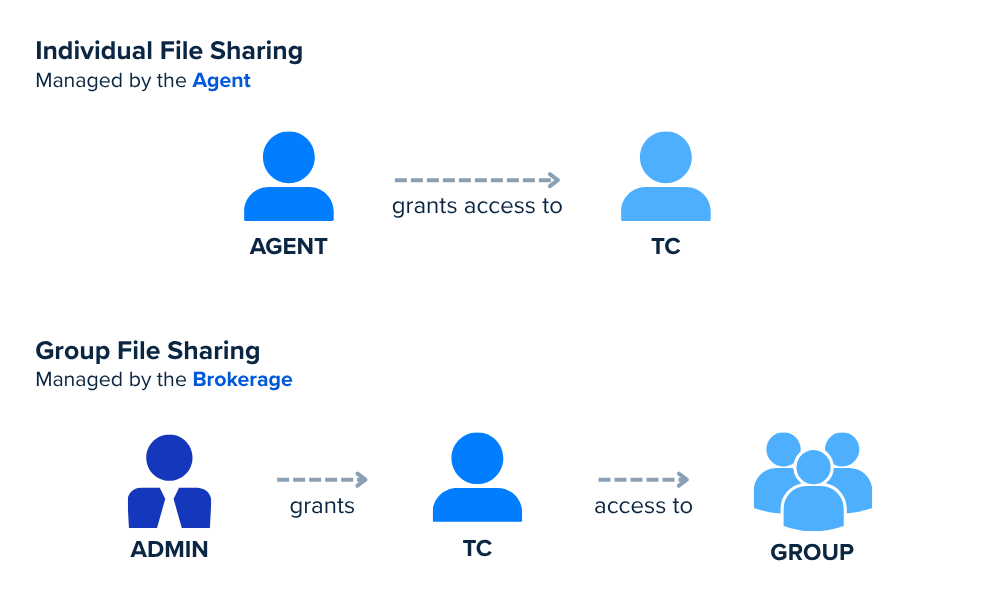
- Individual File Sharing: Set up and managed by the user, allowing one user to share their Forms files with another Forms user, inside or outside of their brokerage. Available for all Forms users.
- Group File Sharing: Set up and managed by the brokerage, allowing the brokerage to create groups of users and grant any number of users in that group access to Forms files for the entire group. Available exclusively with SkySlope Forms Broker Edition.
Click here to learn more about the differences between Individual and Group File Sharing.

Individual File Sharing
Who to Share Files With
Individual file sharing is a "one-to-one" connection that grants one Forms user access to another's files. For example:
- Agent grants access to TC
- Agent grants access to Business Partner
- Agent grants access to Assistant
- Agent grants access to Co-Agent
- TC grants access to Office Manager
How to Share ALL of Your Files
File sharing is managed from within your SkySlope Forms account. If you grant access to another user, that user can assist with any task in the other user's account except editing Forms Templates, editing selected Forms Libraries, and editing the User Profile. You can revoke this access at any time.
- Log in to your SkySlope Forms Account.
- Click your name in the upper-right corner. Then select My Team.
- Click the blue + Add People button.
- Enter the SkySlope Forms email address belonging to the person you want to share your files with.
- Click Send.
- After you've sent the invitation to your collaborator, they will be notified via email!

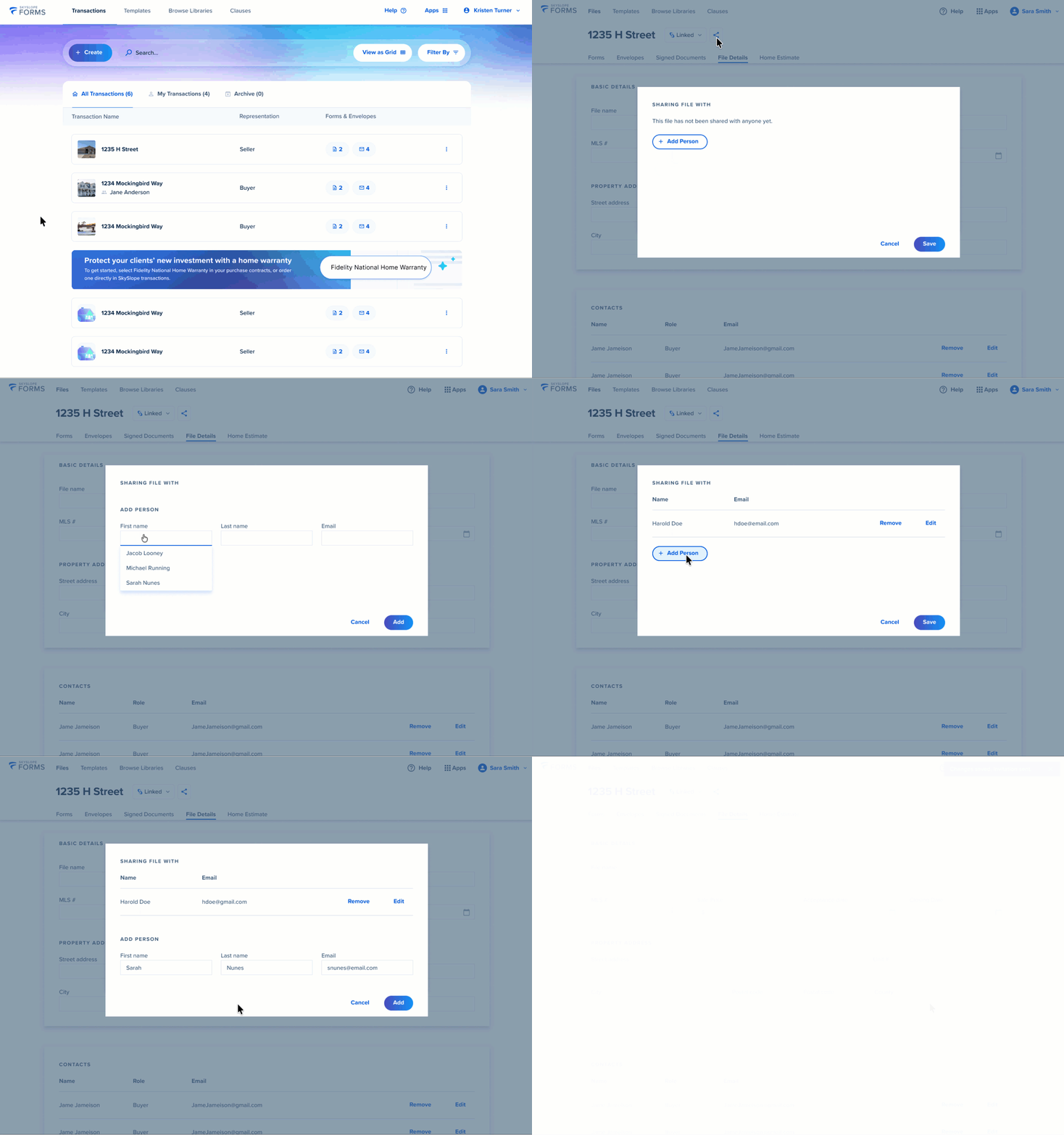
How to Share ONE File
If you'd prefer to share one single file with another Forms user, rather than all of your files and templates, follow the instructions outlined below.
| From the Forms Dashboard | From Within a File |
|
|

What Collaborators Can Do
When you have shared all of your files with another Forms user by adding them to the My Team section of your account, that user can complete various tasks on your behalf. For example, collaborators can:
- Create new files on your behalf
- Add forms to your files
- Utilize your Forms Templates
- Fill out forms and prepare them for signature
- Select and send forms for signature to your file contacts
- Edit and manage in-progress envelopes
Users with access to your files CANNOT edit your Forms Templates, make changes to your selected Forms Libraries, or edit your account Personal Information.
Note: A user added to just one Forms file will not have these capabilities.
Revoking Access
To remove a collaborator's access, follow these steps:
- Log in to your SkySlope Forms Account.
- Click your name in the upper-right corner. Then select My Team.
- Locate the collaborator whose access you wish to revoke.
- Click the More icon (...).
- Select Stop Sharing.

Working as a Collaborator
SkySlope Forms Dashboard
If someone has granted you access to their Forms files, you will be notified via email! You will see a few changes on your dashboard now that you can access another person's files.
- File Owner Column - Next to the Representation information, you will see a column labeled File Owner. This allows you to quickly see who the assigned primary agent is on any given file.
- File Owner Filter - Near the Search bar, you now have the ability to filter files by the file owner. Select a file owner whose files you can access to view only their files.
To take a closer look at how to manage files as a collaborator, click here.

Accessing Files and Envelopes
Once granted access, you can manage any of the Forms files on your dashboard. Within a file, you have full access to open and fill forms or prepare, send, and manage envelopes.
To learn more about what you can do as a collaborator, click here.
If you have any questions about file sharing in SkySlope Forms, don't hesitate to reach out to our Support team. Happy SkySloping!
Was this article helpful?
That’s Great!
Thank you for your feedback
Sorry! We couldn't be helpful
Thank you for your feedback
Feedback sent
We appreciate your effort and will try to fix the article